

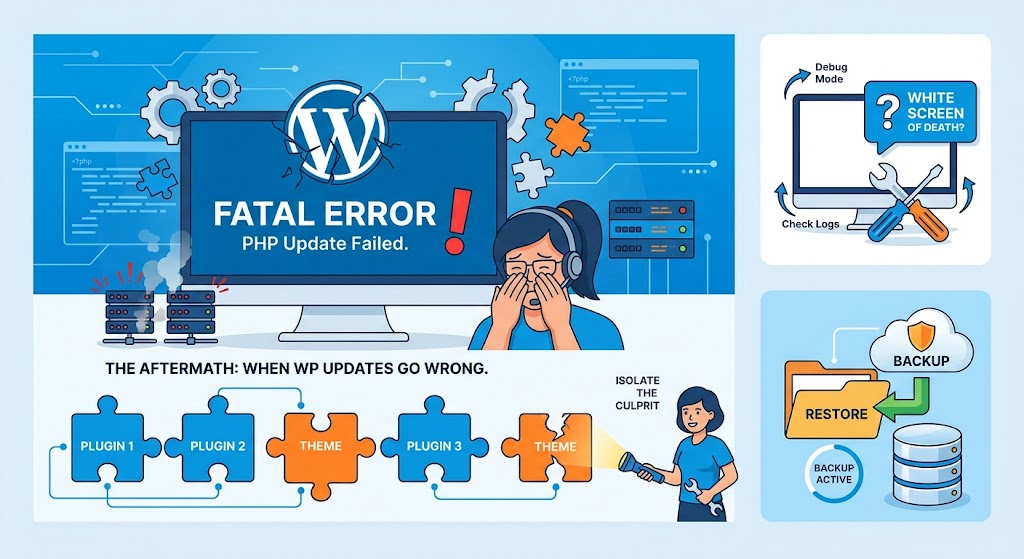
Updating WordPress core, plugins, or themes is essential for security and performance. However, clicking that “Update” button can sometimes lead to an unexpected nightmare: a broken layout, a locked dashboard, or the dreaded White Screen of Death (WSoD).
If a recent update crashed your WordPress site, don’t panic. In most cases, your data and database are completely safe. Follow this quick recovery roadmap to bring your website back online fast.
1. Don’t Panic: Assess What Broke
Before making any changes, check the exact scope of the issue:
- Is the entire website down, or just specific pages?
- Can you access the
/wp-adminarea, or are you locked out? - Is there an explicit error message, or is it a blank screen?
2. Restore Your Site From a Backup
If you have a recent backup, this is the fastest way to get your site back online while you investigate the issue in a local/staging environment.
- Hosting Backups: Most hosting providers (Cloudways, SiteGround, Hostinger, Bluehost) take automatic daily backups. Log into your hosting dashboard and select Restore.
- Plugin Backups: If you use plugins like UpdraftPlus or BlogVault, restore the latest stable backup via your plugin or cloud dashboard.
3. Enable Debug Mode to Identify the Culprit
If you don’t have a backup or want to fix the root cause immediately, turn on WordPress debugging to see what script crashed your site:
- Connect to your server via FTP or cPanel File Manager.
- Open the
wp-config.phpfile in your root folder (public_html). - Locate
define('WP_DEBUG', false);and change it to:PHPdefine( 'WP_DEBUG', true ); define( 'WP_DEBUG_LOG', true ); define( 'WP_DEBUG_DISPLAY', true ); - Refresh your site. WordPress will display the exact plugin, theme, or file name along with the line number causing the crash.
4. Roll Back or Disable the Broken Plugin/Theme
If You Have Admin Access:
Use a free plugin like WP Rollback to downgrade the problematic plugin or theme to its previous working version with a single click.
If You Are Locked Out:
- Connect via FTP or cPanel File Manager.
- Go to
wp-content/plugins/. - Locate the folder of the updated plugin causing the error and rename it (e.g.,
plugin-name-old). - Renaming the folder instantly deactivates the plugin without losing your settings.
5. Check and Upgrade Your PHP Version
Sometimes, updating a plugin or theme introduces modern code structures that require a newer version of PHP. If your server runs on PHP 7.4 or lower, modern updates will trigger severe syntax and execution errors.
- Log into your hosting account control panel.
- Go to MultiPHP Manager or Select PHP Version.
- Upgrade your PHP version to 8.1 or 8.2.
- Test your website again.
6. Fix “Maintenance Mode” Lockouts
If your site gets stuck showing “Briefly unavailable for scheduled maintenance. Check back in a minute.”, an update was likely interrupted mid-process.
- Connect to your website via FTP/File Manager.
- Go to your site’s root directory (
public_html). - Find and delete the hidden file named
.maintenance. - Refresh your website to clear the maintenance screen.
7. Increase Your PHP Memory Limit
Updating major plugins (like Elementor, WooCommerce, or Yoast) can temporarily spike server memory requirements during script compilation.
- Open
wp-config.php. - Add the following line above
/* That's all, stop editing! Happy publishing. */:PHPdefine('WP_MEMORY_LIMIT', '256M'); - Save and reload your site.
Action Plan Checklist
| Issue | Fast Fix |
| Site stuck in Maintenance Mode | Delete .maintenance file via FTP |
| Plugin Update Crashed Site | Rename plugin folder in wp-content/plugins/ |
| White Screen / Blank Page | Enable WP_DEBUG in wp-config.php to identify errors |
| PHP Compatibility Error | Upgrade server PHP version to 8.1+ in cPanel |