

WordPress Speed Optimization: What Actually Makes a Difference?
A slow WordPress website can frustrate visitors, reduce conversions, and make it harder to deliver a smooth browsing experience. Whether you run a business website, an online store, or a personal blog, website speed is an important part of maintaining a successful online presence.
However, improving WordPress performance is not simply about installing a caching plugin or trying to achieve a perfect score on a speed-testing tool. Real improvements come from identifying the actual bottlenecks and fixing the issues that have the biggest impact.
In this guide, we will explore what actually makes a difference in WordPress speed optimization, which techniques deserve priority, and how to build a faster website without unnecessary complexity.
Why WordPress Website Speed Matters
Website speed affects how quickly visitors can access content, interact with buttons, navigate between pages, and complete important actions.
When a website takes too long to respond, visitors may leave before they see the information they need. For an online store, delays can create friction during product browsing and checkout. For a service-based business, a slow contact page can discourage potential customers from submitting an inquiry.
Speed also matters for search engine optimization (SEO). Google uses Core Web Vitals among its page experience signals, although good performance scores alone do not guarantee higher rankings.
The goal should be to create a website that loads quickly, responds smoothly, and remains stable while its content appears.
1. Choose Fast and Reliable WordPress Hosting
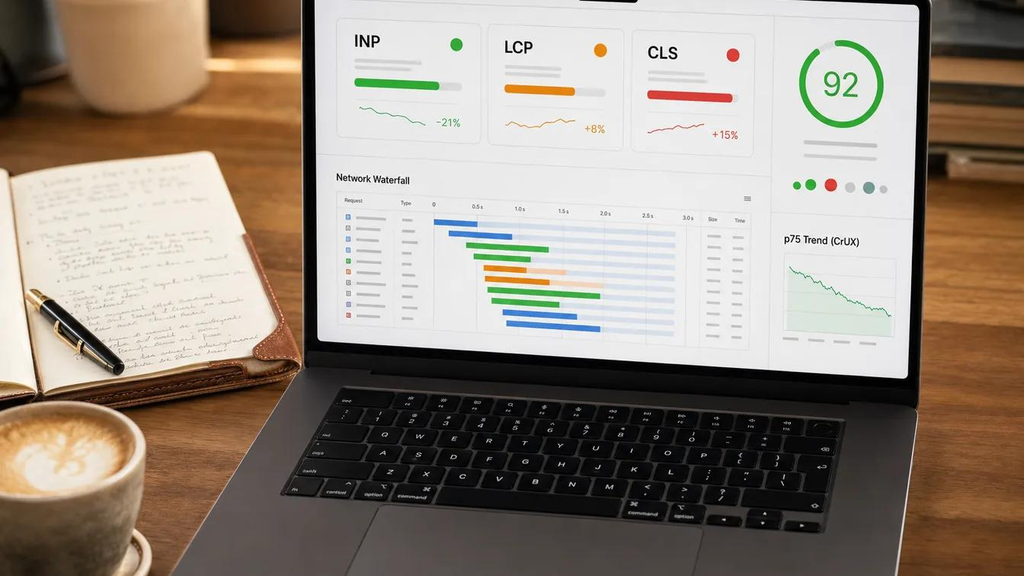
Your hosting environment is one of the most important foundations of website performance.
Even an optimized theme with compressed images can struggle if the server responds slowly or lacks sufficient resources to handle traffic.
When evaluating hosting, consider the following factors:
- Server response time: The server should begin responding quickly when a visitor requests a page.
- PHP performance: A supported, up-to-date PHP version can improve efficiency and security.
- Database performance: The database should handle queries efficiently, especially on content-heavy websites.
- Server resources: Adequate CPU, memory, and storage resources help maintain performance during traffic spikes.
- Server-side caching: Hosting-level caching can reduce the work required to generate frequently visited pages.
If your website consistently has a slow Time to First Byte (TTFB), investigate hosting resources, server configuration, database activity, and caching before focusing exclusively on front-end changes.
Upgrading hosting is not always necessary. First, determine whether your current plan is reaching its limits or whether a configuration problem is responsible for the delay.
2. Implement Proper Page Caching

Caching is often one of the most effective ways to improve WordPress performance.
Normally, WordPress may need to execute PHP code, query the database, and assemble a page for a visitor. Page caching stores a ready-to-serve version of that page so the server can deliver it without repeating the entire process for every request.
This reduces server workload and can improve response times.
Common caching options include:
- Page caching: Stores generated HTML pages for faster delivery.
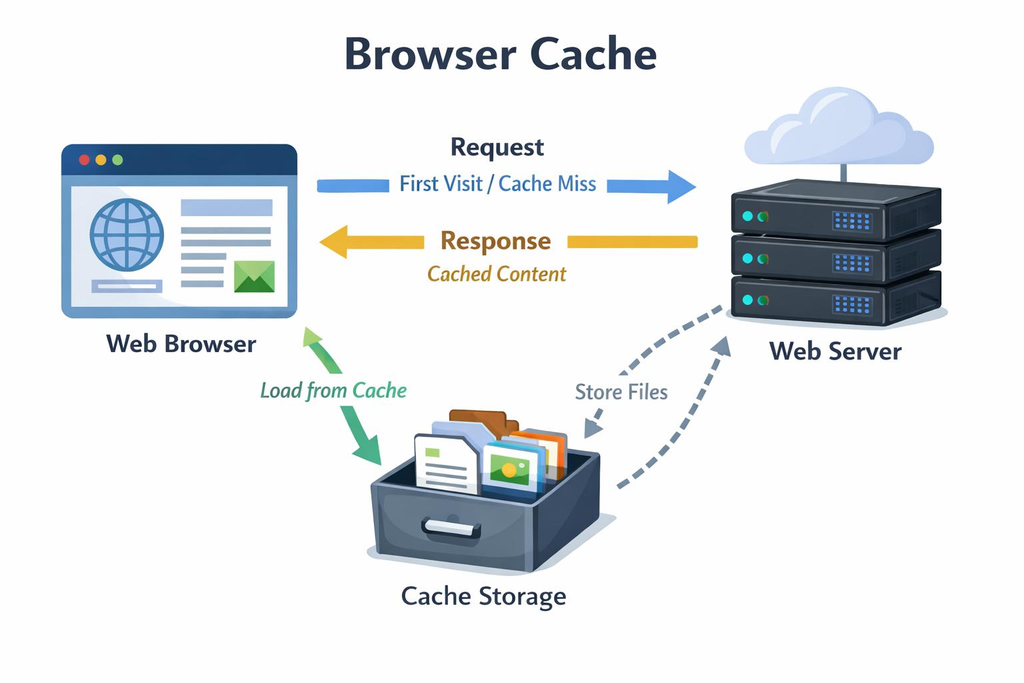
- Browser caching: Allows visitors’ browsers to reuse eligible files, such as stylesheets, scripts, and images.
- Object caching: Stores frequently used database results to reduce repeated queries.
- Opcode caching: Helps PHP avoid repeatedly compiling the same code.
You do not necessarily need every type of caching. A small blog may benefit substantially from page caching, while a high-traffic membership site or WooCommerce store may also need persistent object caching and more advanced server-side optimization.
Popular WordPress caching solutions include WP Super Cache, W3 Total Cache, and hosting-specific caching tools. Choose a solution that works with your hosting environment rather than activating several overlapping plugins.
Important: After enabling caching, test login pages, shopping carts, checkout pages, forms, and other dynamic features. Incorrect cache rules can cause outdated content or unexpected behavior.
3. Optimize Images Without Sacrificing Quality
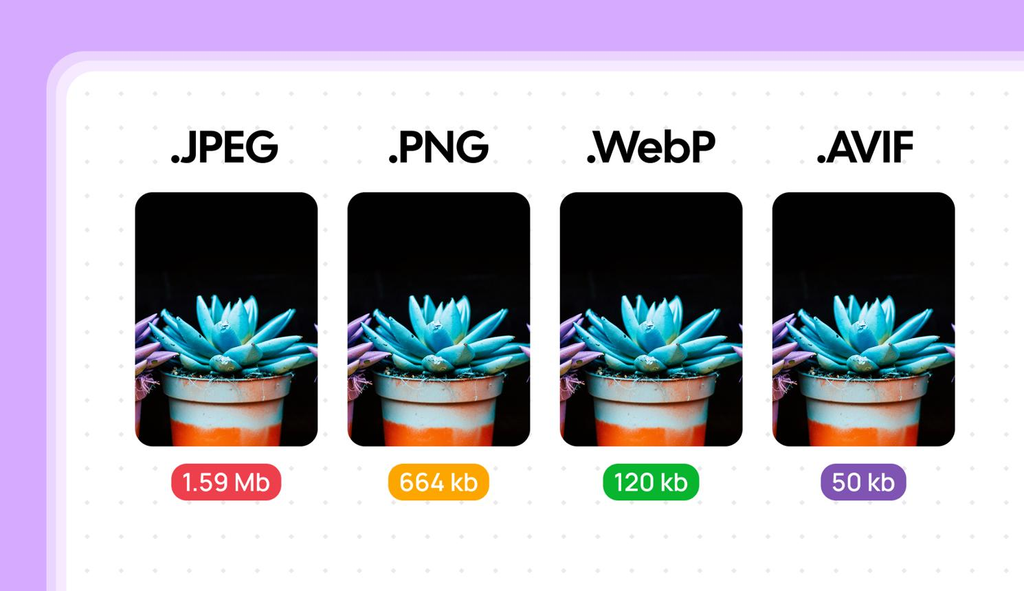
Large images are a common reason WordPress pages load slowly, particularly on mobile devices.
Uploading an unnecessarily large image forces visitors to download more data than they need. Optimizing image dimensions, compression, and delivery can reduce this overhead.
To improve image performance:
- Resize images to match the dimensions in which they will actually appear.
- Use modern formats such as WebP or AVIF when supported by your workflow.
- Compress images while maintaining acceptable visual quality.
- Use responsive images so browsers can select an appropriate size for the device.
- Enable lazy loading for images that appear below the initial viewport.
- Avoid lazy-loading the main hero image when doing so delays the largest visible content.
The last point is particularly important. Lazy loading is useful for content farther down a page, but applying it indiscriminately to the main image can delay loading and negatively affect Largest Contentful Paint (LCP).
Image optimization plugins can automate compression and format conversion, but the best results still depend on choosing sensible image dimensions and loading behavior.
4. Use a Lightweight Theme and Avoid Unnecessary Plugins
Your WordPress theme determines much more than the website’s appearance. It can also influence how much CSS, JavaScript, and other resources a page needs to load.
A theme packed with animations, sliders, visual effects, and unnecessary features may introduce extra work for the browser.
Choose a theme that provides the functionality you actually need and avoids loading excessive assets on every page.
Plugins deserve similar attention. Having many plugins does not automatically make a website slow. The real issue is how much work each plugin introduces.
A poorly optimized plugin may generate excessive database queries, load scripts site-wide, or communicate with external services unnecessarily.
Review your installed plugins and ask:
- Is this plugin still needed?
- Does it load resources on pages where its features are not used?
- Does it duplicate functionality already provided by another tool?
- Does performance improve when the plugin is temporarily disabled in a safe test environment?
Remove unnecessary plugins and replace inefficient ones when testing confirms that they are contributing to the problem.
Avoid deleting useful functionality merely to reduce the plugin count. The objective is less unnecessary work, not simply fewer plugins.
5. Optimize CSS and JavaScript Carefully
CSS controls how a page looks, while JavaScript supports interactive features such as menus, sliders, popups, and dynamic forms.
Excessive or poorly loaded code can delay rendering and make a website feel unresponsive even after its initial content appears.
Useful optimization techniques include:
- Minifying CSS and JavaScript to reduce file size.
- Removing unused CSS where it is safe to do so.
- Deferring non-critical JavaScript.
- Delaying third-party scripts until they are needed.
- Loading critical above-the-fold styles efficiently.
- Reducing unnecessary animations and heavy interactive components.
Minification is helpful, but it does not automatically solve every performance issue. A large JavaScript file can remain expensive to execute even after its file size has been reduced.
Likewise, combining every CSS or JavaScript file into one is not always beneficial on modern HTTP/2 or HTTP/3 connections. Test changes against real performance measurements rather than assuming every optimization is an improvement.
Be especially careful when changing script-loading settings on websites that use page builders, payment gateways, analytics, or interactive forms.
6. Use a Content Delivery Network (CDN) When Appropriate
A Content Delivery Network distributes eligible website resources across servers in different geographic locations.
Without a CDN, visitors who are far from your origin server may experience additional network delays when downloading images, stylesheets, scripts, and other assets.
A CDN can help by serving cached resources from a location closer to the visitor. Some services also support edge caching, image optimization, and other performance features.
A CDN is particularly useful when:
- Your audience is spread across several countries.
- Your website contains many images or static files.
- Your origin server is under significant load.
- Visitors experience slow resource delivery because of geographic distance.
However, a CDN is not a universal solution. It will not automatically fix inefficient database queries, excessive JavaScript execution, or an overloaded origin server.
For a small website with a local audience, good hosting and correctly configured page caching may deliver more noticeable improvements before a CDN becomes necessary.
7. Keep the WordPress Database Efficient
As a WordPress website grows, its database may accumulate unnecessary information and inefficient query patterns.
Depending on the site, this can include expired transients, old post revisions, spam comments, and data left behind by removed plugins. Some websites also suffer from oversized autoloaded options or expensive database queries.
Regular database maintenance can help, but it should be performed carefully.
Recommended practices include:
- Back up the database before making changes.
- Remove spam and unwanted comments.
- Review old revisions and expired temporary data where appropriate.
- Investigate unusually large autoloaded options.
- Identify slow queries when server response times remain high.
- Use persistent object caching when the site and hosting environment benefit from it.
Database cleanup alone will not transform every slow website. If the main problem is an oversized hero image or heavy client-side JavaScript, database optimization may have little visible effect.
Start by measuring the bottleneck and choose the appropriate solution.
8. Improve Core Web Vitals Instead of Chasing a Perfect Score
Google’s Core Web Vitals help evaluate loading performance, responsiveness, and visual stability.
The three key metrics are:
Largest Contentful Paint (LCP) measures how quickly the main visible content loads. A good target is 2.5 seconds or less.
Interaction to Next Paint (INP) measures how quickly a page responds to user interactions. A good target is 200 milliseconds or less.
Cumulative Layout Shift (CLS) measures unexpected visual movement while a page loads. A good target is 0.1 or less.
These thresholds are assessed at the 75th percentile of page visits, segmented by device type when field data is available.
Each metric points toward different potential problems.
For poor LCP, investigate server response time, the main image or text element, render-blocking resources, and resource-loading priorities.
For poor INP, examine long-running JavaScript tasks, unnecessary event handlers, and expensive browser rendering work.
For poor CLS, reserve space for images and embeds, use stable layout dimensions, and prevent late-loading content from unexpectedly pushing existing elements around.
A perfect laboratory score is not the ultimate goal. A consistently fast, responsive experience for real visitors is more valuable than a number that looks impressive in a single test.
9. Measure Performance Before and After Every Major Change
Speed optimization works best when it follows a repeatable process.
Start by testing important pages, including the homepage, a representative blog post, a category page, and product or checkout pages if your website sells online.
Useful tools include:
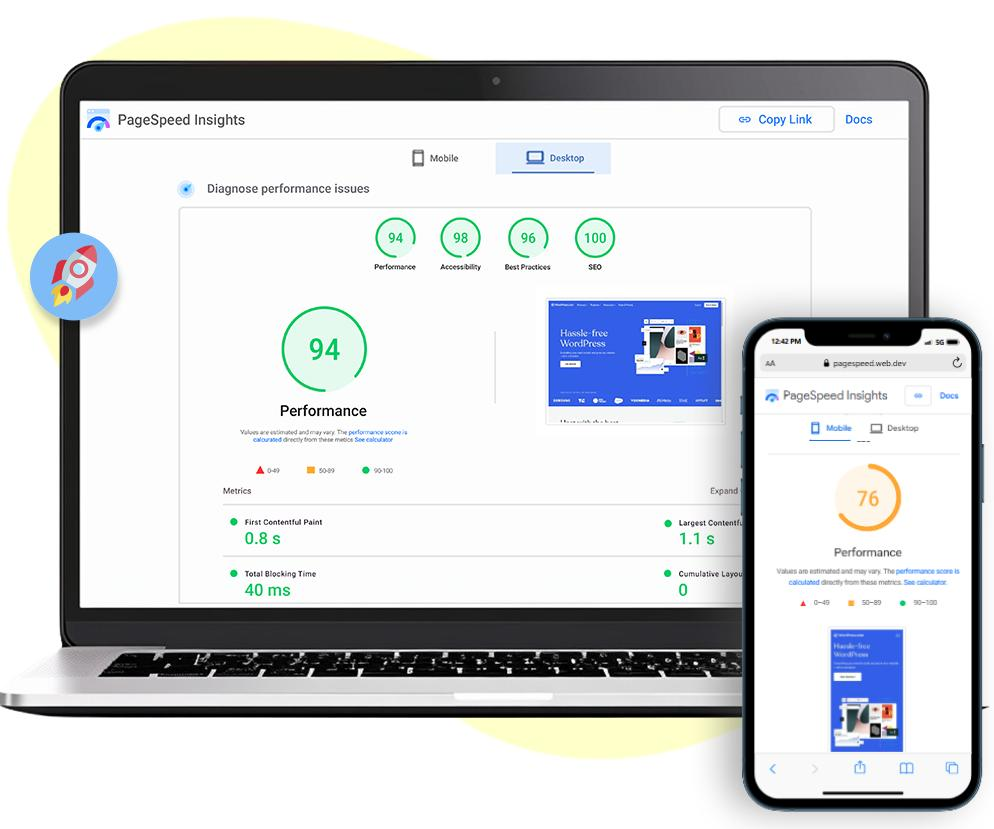
- Google PageSpeed Insights for laboratory tests and available real-user data.
- Google Search Console for Core Web Vitals reports based on eligible field data.
- Chrome DevTools for inspecting network requests, JavaScript execution, and rendering behavior.
Record your starting results before changing anything. Then apply one meaningful improvement at a time and test again under comparable conditions.
For example, if the homepage has a slow LCP because of a large hero image, optimize that image and its loading priority first. If the server response is slow, investigate hosting and caching instead of spending hours minifying CSS.
Remember that results can vary depending on the testing location, device, network conditions, cache state, and server load. Compare repeated tests and use field data when available.
10. Avoid Common WordPress Speed Optimization Mistakes
Some popular optimization practices produce limited benefits or create new problems when applied without understanding the website.
Avoid these mistakes:
Installing too many optimization plugins: Overlapping caching, minification, and lazy-loading features can conflict with one another.
Enabling every optimization setting at once: This makes it difficult to identify which change helped or caused a problem.
Lazy-loading every image: The main visible image may need to load immediately to achieve good LCP.
Removing plugins solely because of their number: Performance depends on the code and behavior of plugins, not just the total count.
Ignoring mobile performance: A page that feels fast on a powerful desktop computer may perform poorly on a slower mobile device.
Chasing a score instead of fixing real issues: A higher laboratory score is not a guarantee of better conversions or search rankings.
Skipping backups and functional testing: Performance changes can break forms, navigation, tracking, or checkout functionality if they are not tested carefully.
A Practical WordPress Speed Optimization Checklist
Use this checklist to prioritize the work:
- Test the website’s most important pages before making changes.
- Check server response time and available hosting resources.
- Enable and verify appropriate page caching.
- Resize and compress large images.
- Ensure the main visible image loads with the right priority.
- Review theme overhead and unnecessary plugin functionality.
- Optimize CSS and JavaScript based on measured bottlenecks.
- Consider a CDN if geographic distance or static-resource delivery is an issue.
- Investigate database performance when evidence points to a database bottleneck.
- Check LCP, INP, and CLS on mobile and desktop.
- Retest forms, navigation, login, and checkout after optimization.
- Monitor performance regularly rather than treating it as a one-time task.
Final Thoughts
WordPress speed optimization is most effective when it focuses on the causes of poor performance rather than a collection of generic tricks.
Reliable hosting, effective caching, optimized images, lightweight themes, efficient JavaScript, and appropriate resource delivery can make a meaningful difference. Database tuning and a CDN can provide additional benefits when your website’s specific needs justify them.
The best approach is straightforward: measure first, identify the largest bottleneck, make a targeted improvement, and test the results.
You do not need every performance plugin or a perfect score to build a fast website. You need a well-configured WordPress environment that delivers the right content quickly, responds smoothly, and works reliably for your visitors.
Frequently Asked Questions
What is the most effective way to speed up WordPress?
There is no single solution for every website. Page caching is often a strong first step, but slow hosting, oversized images, inefficient plugins, or heavy JavaScript may be the primary bottleneck on a particular site.
Do more WordPress plugins make a website slower?
Not necessarily. Performance depends on the quality and behavior of each plugin, including its database queries, scripts, and external requests. Remove unnecessary plugins and investigate those that demonstrably affect performance.
Does website speed affect SEO?
Website performance contributes to user experience, and Core Web Vitals are used by Google’s ranking systems. However, strong speed scores do not guarantee top rankings; relevance, content quality, and other factors also matter.
Is a CDN necessary for every WordPress website?
No. A CDN is especially useful for geographically distributed audiences and websites that serve many static resources. Smaller sites may see sufficient improvements from reliable hosting, image optimization, and caching.
How often should I test WordPress website speed?
Test after major theme, plugin, hosting, or design changes, and periodically as your content and traffic grow. Monitoring important pages helps you identify performance regressions before they become persistent problems.