What to Do After Your WordPress Website Gets Hacked
A practical recovery, cleanup, and hardening guide
Getting the “your WordPress website has been hacked” moment can be stressful. You may see strange redirects, unfamiliar admin users, spam pages, malware warnings, a changed homepage, or a hosting provider telling you that suspicious files were found.
The important thing is not to panic — and not to start deleting random files.
A hacked WordPress website should be treated like a security incident. Your first job is to stabilize the situation, understand what happened, regain control, clean the installation, and then close the weakness that allowed the attacker in.
WordPress’s own hacked-site guidance recommends documenting the symptoms, checking the hosting environment, scanning the site and local computer, resetting access, creating backups, removing the compromise, updating the installation, changing passwords again after cleanup, and investigating how the attacker got in. WordPress also emphasizes that security is about reducing risk and planning for recovery rather than making a system magically “100% secure.”
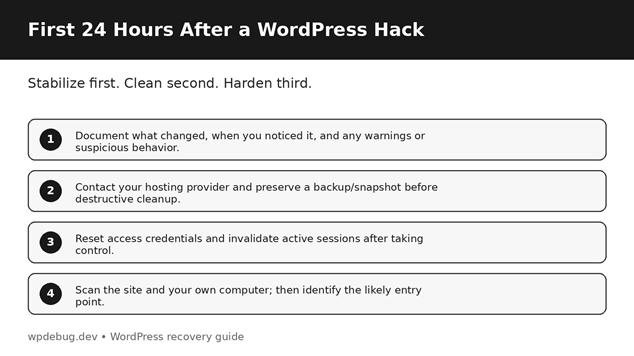
1. First, Stay Calm and Document Everything
Before changing dozens of things, write down what you know.
Record:
• When you first noticed the problem.
• What pages or URLs looked suspicious.
• Whether visitors were redirected.
• Whether Google, Bing, a browser, or your hosting company showed a malware warning.
• Whether new WordPress users appeared.
• Which plugins, themes, or settings were changed recently.
• Any emails or alerts you received from your host or security service.
• The approximate time and timezone of the incident.
This information can become extremely useful later. If a security professional or hosting support team helps you, a timeline makes the investigation much easier.
Do not immediately delete every suspicious-looking file. Some files may contain evidence about how the compromise happened.
2. Contact Your Hosting Provider
Your WordPress site does not exist in isolation. The server, account, database, email, DNS, control panel, and other sites on the same hosting environment can all matter.
Ask your host:
• Did they detect malware or suspicious activity?
• Can they provide security or access logs?
• Was the hosting account or another site on the server affected?
• Do they have a clean backup from before the compromise?
• Did they suspend any processes or files?
• Can they help identify when suspicious activity started?
WordPress specifically recommends checking with the hosting provider because a compromise may affect more than the individual WordPress installation.
3. Take a Backup or Snapshot Before Cleanup
This sounds strange: why back up a hacked site?
Because the infected copy may still contain information that helps you understand what happened.
If your host provides snapshots, take one before making destructive changes. Keep it clearly labeled as an infected/pre-cleanup snapshot.
Also identify your known-good backups. A backup from before the compromise can sometimes be the safest foundation for recovery — but only if you have reason to believe it predates the infection and is complete.
A backup is not automatically a clean backup.
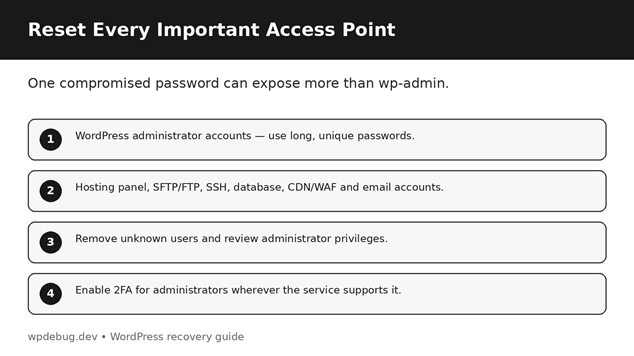
4. Change Passwords — But Think Beyond WordPress
Changing the WordPress administrator password is important, but it is only one part of recovery.
Review every credential that could provide access to the environment:
• WordPress administrator accounts
• Other WordPress users with elevated permissions
• Hosting control panel
• SFTP/FTP
• SSH
• Database credentials
• CDN or WAF account
• Domain/DNS account
• Email accounts used for administration
• Backup storage
• Any third-party service connected to the website
Use long, unique passwords. Do not reuse the old password anywhere.
If you suspect a password was stolen, changing it only inside WordPress is not enough.
5. Invalidate Existing WordPress Sessions
If an attacker obtained an administrator session, changing the visible password may not be the only step you need.
WordPress’s hacked-site guidance recommends resetting the security keys in wp-config.php as part of cutting off existing authenticated sessions.
This is a technical step, so take a backup of wp-config.php first and make changes carefully. If you are not comfortable editing configuration files, ask your hosting provider or a WordPress professional to handle it.
6. Check for Unknown Administrator Accounts
Open Users in WordPress and review the complete user list.
Look for:
• Unknown administrators
• Strange usernames
• Accounts using unfamiliar email addresses
• Recently created accounts you cannot explain
• Legitimate users who suddenly have higher privileges
Do not simply delete an account without first recording its details if you are investigating an incident. An unknown administrator may be evidence of how the attacker maintained access.
After documenting it, remove unauthorized access and reset credentials for legitimate users as appropriate.
7. Scan the Website — and Your Computer
A compromised website can be caused by a vulnerable plugin, stolen credentials, server-level issues, or malware on a computer used to administer the site.
WordPress recommends scanning both the website and the local environment.
For the website, you can use an application-level security scanner and/or a remote scanner. Different scanners look at different signals, so no single scan should be treated as absolute proof that a site is clean.
For your computer, run a full malware/antivirus scan. If you regularly use SFTP, FTP, browser password storage, or WordPress admin from that machine, local security matters too.
8. Look for the Common Signs of a Compromise
A hacked WordPress installation does not always look dramatic.
Watch for:
• New PHP files you did not create
• Unexpected files in uploads or other directories
• Modified index.php, functions.php, header.php, footer.php or .htaccess
• Unknown WordPress users
• Unexpected administrator privileges
• Strange redirects
• Spam pages or links
• JavaScript you did not add
• Search-engine spam
• Scheduled tasks or cron jobs you do not recognize
• Unexplained changes to plugins or themes
• Unexpected outbound emails
The WordPress hacked-site documentation specifically calls attention to .htaccess and several common theme/core files during remediation.
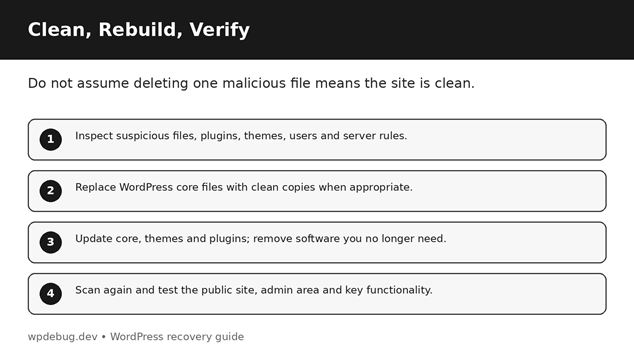
9. Do Not Assume “I Deleted the Malware” Means You Are Done
This is one of the biggest mistakes website owners make.
If you find one malicious file and delete it, the attacker may still have:
• Another backdoor
• A compromised administrator account
• A modified plugin
• A malicious theme file
• A scheduled persistence mechanism
• A stolen hosting credential
• A vulnerability that lets them return
That is why recovery needs to include both cleanup and root-cause analysis.
10. Replace WordPress Core Files With Clean Copies When Appropriate
If WordPress core files were modified, replacing them with clean copies can be part of remediation.
The official WordPress hacked-site documentation recommends replacing affected core directories such as wp-admin and wp-includes with clean copies when appropriate, while paying close attention to wp-content because it contains themes, plugins, and site-specific material.
Do not blindly overwrite everything. Make sure you understand what is being replaced and preserve legitimate site content and configuration.
11. Update WordPress, Plugins, and Themes
Once you have stabilized the site, bring the software up to date.
This includes:
• WordPress core
• Active plugins
• Active theme
• Other maintained components that your hosting environment depends on
WordPress identifies keeping core, plugins, and themes up to date as one of the most important security practices.
Also ask why a component was outdated. If a plugin has not been maintained, is abandoned, or is no longer necessary, keeping it installed just because “it still works” may increase risk.
12. Remove Unused Plugins and Themes
Every installed component increases the amount of software you need to maintain.
If you no longer need a plugin or theme, remove it instead of leaving it sitting on the server.
Be especially careful with:
• Pirated plugins
• “Nulled” themes
• Plugins downloaded from unofficial websites
• Abandoned extensions
• Unknown files supplied by a previous developer
Use trusted sources and maintain software that is actively receiving updates.
13. Review wp-config.php
wp-config.php contains sensitive configuration information and deserves special attention after a compromise.
Review it for unexpected changes.
Depending on your hosting setup, WordPress documents additional hardening options such as limiting who can read the file and, in some environments, placing it one directory above the web root.
Do not copy random security snippets from the internet into wp-config.php without understanding what they do. A configuration mistake can break the site.
14. Disable the Built-In File Editor
WordPress allows administrators to edit plugin and theme files from the dashboard by default.
That convenience can become dangerous if an attacker gains administrator access.
WordPress documents the DISALLOW_FILE_EDIT constant as a way to disable dashboard file editing:
define( ‘DISALLOW_FILE_EDIT’, true );
This does not stop every possible file-upload or server compromise, but it can remove one convenient path for modifying PHP code through the dashboard.
15. Check File Permissions
File permissions should allow WordPress and the web server to function without giving unnecessary write access.
Do not simply set every file and directory to 777 because a plugin or tutorial says it fixes permissions.
Incorrectly permissive permissions can make a compromise easier to spread or persist.
If you are unsure, ask your host what permission model they recommend for your specific server stack.
16. Review .htaccess and Server Rules
After a hack, .htaccess deserves special attention on Apache-based hosting.
An attacker may modify it to create redirects, block certain visitors, redirect search crawlers, or otherwise manipulate requests.
Compare the file against a known-good version or review every rule carefully.
Do not delete .htaccess blindly if your site relies on legitimate rewrite rules. WordPress and other applications may depend on it.
17. Check the Database for Suspicious Changes
Not every compromise lives in a PHP file.
Review the database for suspicious:
• Administrator accounts
• Options
• Injected JavaScript
• Spam content
• Unexpected URLs
• Modified settings
Database cleanup is one of the areas where caution matters most. Before changing rows manually, create a backup and make sure you know exactly what a value does.
If you are not comfortable working with phpMyAdmin or SQL, this is a good point to involve your host or a qualified WordPress security professional.
18. Review Cron Jobs and Scheduled Tasks
Attackers sometimes use scheduled tasks to restore malicious files or run code again after cleanup.
Review WordPress cron events and, where applicable, server-level cron jobs.
If you find an unfamiliar scheduled task, document it before removing it. A suspicious scheduled task can provide an important clue about persistence.
19. Secure WordPress Login
After the cleanup, harden the login process.
Useful protections include:
• Strong, unique passwords
• Two-factor authentication for administrators
• Login rate limiting
• WAF/CDN protection
• CAPTCHA or similar bot protection where appropriate
• Monitoring for unusual login activity
WordPress’s current brute-force guidance recommends strong unique passwords, 2FA for administrators, rate limiting, and monitoring. It also notes that simply hiding the login URL should not be treated as the primary defense.
20. Review Every Administrator
A secure website should not have more administrators than necessary.
For each administrator, ask:
“Does this person still need administrator access?”
If not, reduce their role or remove the account according to your access policy.
Least privilege matters because a compromised low-privilege account can be less damaging than a compromised administrator account.
21. Restore From a Known-Good Backup When It Makes Sense
Sometimes cleaning an infected installation manually is appropriate.
Sometimes rebuilding from a known-good backup is safer.
The correct choice depends on:
• How severe the compromise is
• Whether you know when the infection began
• Whether clean backups exist
• Whether the database is affected
• Whether the hosting environment is trustworthy
• Whether you can verify the restored site
Never restore a backup simply because it is old. If the attacker was present before that backup was created, you may restore the backdoor along with the website.
22. Check Your Site After Cleanup
A successful cleanup should be followed by verification.
Test:
• Homepage
• Important pages
• Contact forms
• Login
• Checkout, if applicable
• Search
• Media
• Admin dashboard
• Email delivery
• Redirects
• HTTPS
• Mobile pages
• XML sitemap
• robots.txt
Also run another malware/security scan.
If suspicious behavior returns immediately after cleanup, stop repeatedly deleting files and investigate persistence or the original entry point.
23. Check Google Search Console and Other Webmaster Tools
If your website displayed spam or malware, search engines may have detected it.
Review your webmaster/security notifications and indexing status.
If Google or another search engine has flagged the site, follow the relevant review or security-remediation process after you are confident the problem has actually been fixed.
Do not request reconsideration while the infection is still present.
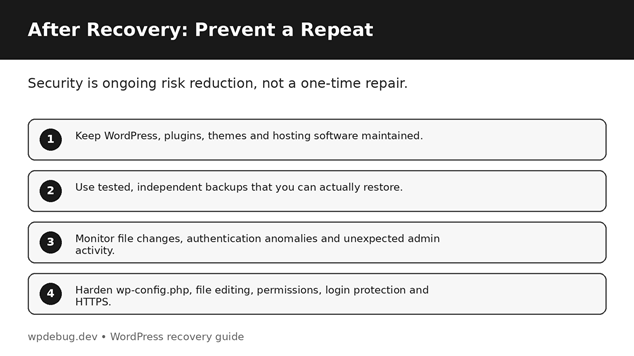
24. Monitor the Site for Several Days
Recovery is not complete the moment the homepage looks normal.
Watch for:
• New unknown files
• New admin accounts
• Failed login spikes
• Successful logins from unexpected locations
• Unexpected redirects
• Reappearing spam
• Changes to plugins/themes
• Server warnings
• Suspicious outbound email
WordPress recommends logging and monitoring as part of an overall security strategy.
25. Find the Root Cause
The most valuable question after a hack is:
“How did they get in?”
Possible causes include:
• An outdated plugin
• A vulnerable theme
• Weak or reused credentials
• Stolen SFTP/FTP credentials
• A compromised administrator account
• Insecure hosting
• Malware on an administrator’s computer
• A vulnerable third-party service
• A malicious or pirated plugin/theme
If you only clean the symptoms but leave the entry point open, the attacker may return.
26. Secure the Hosting Account
Your WordPress dashboard is only one layer.
Review:
• Hosting account password
• SFTP/SSH access
• FTP accounts
• Database users
• Control-panel users
• DNS account
• CDN/WAF
• Backup accounts
• Email accounts
Enable 2FA wherever available.
If your host offers security logs, ask for them.
27. Make Backups That You Can Actually Restore
A backup that cannot be restored is not a reliable recovery plan.
Keep backups of:
• Database
• wp-content
• Uploads
• Theme/plugin configuration
• Important server configuration
Store copies independently from the live hosting account when possible.
Most importantly, test restoration periodically.
28. Add a Security Plugin or WAF — But Do Not Treat It as Magic
A reputable security plugin or web application firewall can provide useful scanning, login protection, alerts, and traffic filtering.
But a security plugin is not a substitute for:
• Updating software
• Strong credentials
• 2FA
• Good hosting security
• Safe backups
• Monitoring
• Removing vulnerable or unnecessary components
Layered security is much more useful than relying on a single plugin.
29. Do Not Make Security Changes Blindly
After a hack, it is tempting to copy twenty commands from a blog post and paste them into the server.
Avoid that.
A security change that works on one hosting stack can break another.
Before changing:
• .htaccess
• File permissions
• wp-config.php
• Database values
• PHP settings
• Server rules
• DNS
• Firewall rules
create a backup and understand what the change is supposed to accomplish.
30. A Simple Post-Hack Recovery Checklist
Use this as a practical checklist:
□ Document what happened
□ Contact the hosting provider
□ Preserve a snapshot/backup
□ Identify a known-good backup
□ Reset WordPress credentials
□ Reset hosting/SFTP/SSH credentials
□ Reset database credentials if necessary
□ Secure email and DNS accounts
□ Invalidate existing WordPress sessions
□ Review administrator accounts
□ Scan the website
□ Scan administrator computers
□ Inspect suspicious files
□ Inspect .htaccess and server rules
□ Review database changes
□ Review cron/scheduled tasks
□ Replace compromised core files where appropriate
□ Update WordPress
□ Update plugins and themes
□ Remove unused or untrusted software
□ Disable dashboard file editing
□ Review file permissions
□ Enable 2FA
□ Add login protection
□ Configure monitoring
□ Test the site
□ Check webmaster/security warnings
□ Identify the original entry point
□ Create and test a clean recovery plan
31. What Not to Do After a WordPress Hack
Avoid these common mistakes:
Do not immediately delete everything without a backup.
Do not assume one malware scan proves the site is clean.
Do not keep using the same compromised password.
Do not reinstall the same vulnerable plugin that caused the problem.
Do not restore an unknown backup without checking its date and integrity.
Do not give every user administrator access.
Do not install random “nulled” security or optimization plugins.
Do not ignore your hosting account.
Do not stop monitoring just because the homepage looks normal.
32. When Should You Hire a Professional?
Consider professional help when:
• The site keeps getting reinfected.
• You cannot identify the entry point.
• Multiple sites under the same hosting account are affected.
• Customer or sensitive information may have been exposed.
• The attacker appears to have server-level access.
• The database has been heavily modified.
• You need forensic analysis.
• You are uncomfortable editing server files or databases.
A professional can help preserve evidence, identify persistence mechanisms, rebuild the installation, and review the wider hosting environment.
33. Final Thoughts
A hacked WordPress website is not simply a broken website. It is a security incident.
The safest recovery process is systematic:
Document → Stabilize → Backup → Reset access → Scan → Clean → Update → Harden → Monitor → Investigate.
The goal is not to make a promise that your website can never be hacked again. WordPress itself describes security as risk reduction and recovery planning.
What matters is making the site harder to compromise, making unauthorized access easier to detect, and making recovery much faster if something goes wrong again.
If you have just discovered that your WordPress website was hacked, do not start with panic. Start with evidence, access control, backups, cleanup, and a plan.
Frequently Asked Questions
Is my WordPress website safe after removing malware?
Not automatically. You also need to investigate how the attacker got in, reset credentials, review users and files, update software, and monitor the site.
Should I change passwords after a WordPress hack?
Yes. Review WordPress, hosting, SFTP/SSH, database, email, DNS, CDN/WAF, and other relevant credentials. WordPress also recommends changing passwords again after the site has been cleaned.
Should I reinstall WordPress after a hack?
Not every hacked site requires a complete reinstall. The appropriate approach depends on the compromise. Core files may be replaced with clean copies, while themes, plugins, uploads, and database content require separate review.
Can a security plugin remove every hack?
No security tool should be treated as a guarantee. Scanners can miss things, and a site can be compromised through credentials, hosting, or third-party services.
What is the most important thing after a WordPress hack?
There is no single magic step. A strong response combines access control, clean software, backups, monitoring, and root-cause analysis.
Can WordPress websites be made 100% secure?
No. WordPress describes security as risk reduction rather than total elimination of risk. The practical goal is to reduce attack opportunities and improve detection and recovery.
Embedded Editorial Visuals