

Long-form WordPress security guide • Human-touch editorial draft
Category: WordPress Security / WordPress Troubleshooting
Suggested slug: wordpress-security-hardening-after-cleanup
Focus keyword: WordPress security hardening
Meta description: Cleaned your WordPress site after malware? Learn how to harden WordPress with updates, strong accounts, 2FA, backups, file protection, monitoring, and safer hosting practices.
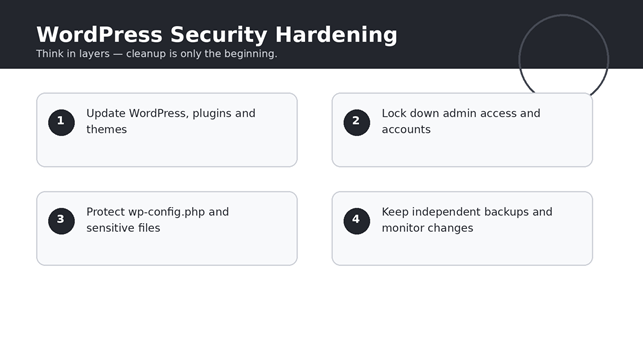
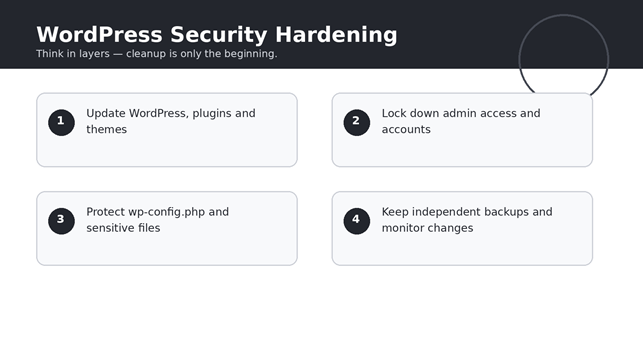
Featured visual: WordPress security hardening works best as a layered process.
Cleaning malware from a WordPress website is a big step, but it is not the finish line.
If your website was hacked, infected with malware, filled with spam pages, or had suspicious files added to the server, simply removing the visible problem does not automatically make the site secure.
Think of it like cleaning up after a break-in. You can remove the mess, but if you never change the locks, check the windows, and figure out how the intruder got inside, the same problem can happen again.
That is why security hardening matters after a WordPress cleanup.
The goal is not to make a website “impossible to hack.” No online system can honestly promise that. The goal is to reduce unnecessary attack surface, protect important accounts and files, keep software patched, maintain reliable backups, and make suspicious changes easier to detect.
WordPress’s official hardening guidance emphasizes several of these same principles, including keeping software updated, using strong authentication, limiting access, protecting configuration files, disabling dashboard file editing when appropriate, maintaining backups, and monitoring the installation.
What Is WordPress Security Hardening?
Security hardening means making deliberate changes that reduce the number of ways an attacker can compromise or damage your website.
On a WordPress site, that can include:
- Updating WordPress core, plugins and themes.
- Removing unused plugins and themes.
- Strengthening administrator accounts.
- Enabling two-step authentication.
- Limiting permissions.
- Protecting wp-config.php and other sensitive files.
- Disabling the built-in theme and plugin file editor when appropriate.
- Maintaining independent backups.
- Monitoring the site for unexpected changes.
- Using a firewall or security service where it makes sense.
The important thing is that hardening is a process, not a single setting.
A security plugin alone does not turn a neglected WordPress installation into a secure one. Security works best when multiple layers support each other.
Why Hardening After a Cleanup Is So Important
After a cleanup, it is tempting to log back into WordPress, confirm that the malware is gone, and move on.
That is where many site owners make a mistake.
If an attacker previously gained access, you should assume there may have been more than one weakness involved until you have investigated the situation.
For example, the original problem could have involved:
- An outdated plugin.
- A vulnerable theme.
- A compromised administrator account.
- A reused password.
- An insecure hosting environment.
- An unknown or abandoned plugin.
- A malicious file uploaded to the site.
- A compromised third-party service.
WordPress’s hacked-site guidance recommends changing passwords again after the site has been cleaned and paying attention to suspicious files and commonly modified locations.
In other words, cleanup should be followed by recovery and hardening—not just a return to normal operations.
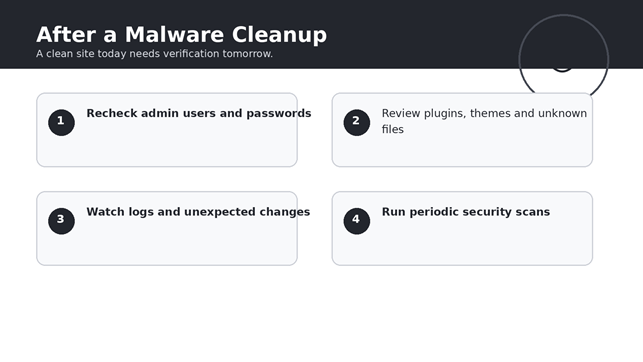
1. Update WordPress Core First
One of the simplest and most important hardening steps is keeping WordPress itself up to date.
WordPress regularly releases security fixes. The official security documentation recommends running the latest supported version because older versions may no longer receive current security fixes.
After a cleanup, check:
Dashboard → Updates
Make sure WordPress core is current.
Do the same for plugins and themes.
Do not download WordPress core, plugins or themes from random websites simply because a site promises a “free premium” version. WordPress’s official hardening guidance recommends obtaining software from trusted sources.
A useful rule is simple:
If you don’t know where a plugin or theme came from, don’t assume it is safe.
2. Update Every Plugin and Theme
WordPress itself is only one part of the stack.
A site can have an updated WordPress core and still be exposed because an installed plugin is outdated.
After a cleanup, review every installed plugin and theme.
Ask:
- Is it actively maintained?
- Does it still receive updates?
- Do I actually need it?
- Was it installed from a trusted source?
- Is it compatible with the current WordPress version?
If a plugin is no longer needed, remove it instead of simply leaving it inactive.
The same applies to themes. If you are using a child theme, you may still want to remove old themes that you no longer need, while keeping an appropriate fallback theme if your setup requires one.
3. Change Passwords After the Site Is Clean
If a website has been compromised, changing passwords should be part of the recovery process.
But timing matters.
Changing a password while the site is still compromised does not guarantee that the new password will remain secret. That is why password changes should be made after you have confidence that the malicious access has been removed.
Change credentials for relevant accounts, such as:
- WordPress administrators.
- Hosting accounts.
- SFTP/FTP accounts.
- Database users, where appropriate.
- Domain/DNS accounts.
- Security/CDN accounts.
- Other services connected to the website.
Use a different long, unique password for each important service.
Do not reuse the same password across WordPress and hosting.
If one account is compromised, password reuse can turn a single incident into a much larger one.
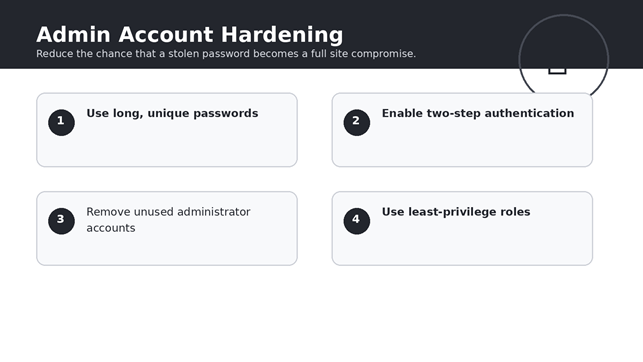
4. Enable Two-Step Authentication
A strong password is important, but adding another authentication factor provides an additional layer.
WordPress’s hardening documentation recommends two-step authentication as an additional security measure.
The exact implementation depends on your WordPress setup and identity provider, but the principle is straightforward:
Password alone should not be the only barrier protecting an administrator account.
This becomes particularly important for accounts with powerful permissions.
If your website has multiple administrators, consider whether every person actually needs administrator-level access. If someone only needs to publish posts, an administrator account may provide far more access than necessary.
5. Review Every Administrator Account
After a cleanup, open the Users section and review the accounts carefully.
Look for:
- Administrators you recognize.
- Accounts that are no longer used.
- Unexpected usernames.
- Duplicate accounts.
- Old agency or developer accounts.
- Accounts that have more privileges than necessary.
If you find an account you do not recognize, do not simply assume it is harmless.
Investigate it.
If you are certain it should not exist, remove it according to your site’s recovery process and review the site’s logs and other accounts for signs of unauthorized access.
WordPress’s security guidance also recommends avoiding easily guessed administrative usernames such as “admin” when creating administrative accounts.
6. Use the Principle of Least Privilege
Not every user needs administrator access.
WordPress has different user roles for a reason.
If someone only needs to write and publish content, give them the role they actually need rather than administrator privileges.
The fewer accounts with high-level permissions, the smaller the potential impact of a compromised account.
This is especially important for:
- Writers.
- Editors.
- Freelancers.
- Agencies.
- Developers.
- Temporary contractors.
When someone’s work is finished, remove or downgrade access rather than leaving an old administrator account active indefinitely.
7. Disable the WordPress File Editor
By default, WordPress can provide dashboard-based editors for plugin and theme files.
That can be convenient for quick changes, but it also means a compromised administrator account may be able to modify PHP code directly through the dashboard.
WordPress’s official hardening documentation provides a way to disable these editors with:
define( ‘DISALLOW_FILE_EDIT’, true );
This is typically added to wp-config.php.
It is important to understand what this does and does not do.
It prevents the dashboard file-editing capability. It does not make the website immune to file uploads or other forms of compromise.
If you use a workflow that genuinely requires dashboard file editing, test this change before deploying it.
8. Protect wp-config.php
The wp-config.php file contains important configuration information, including database connection details and security-related constants.
It should be protected carefully.
WordPress’s official documentation discusses protecting wp-config.php through appropriate file permissions and, depending on the server environment, additional server configuration.
Do not paste your real database password or secret keys into public documentation, screenshots, support forums, or tutorials.
Also remember that security changes should be made with backups available. A small configuration mistake can make a website inaccessible.
9. Review File Permissions
File permissions determine who can read, modify, or execute files and directories.
They should not be made excessively permissive just because a plugin reports a write-permission problem.
WordPress documentation specifically warns about overly permissive permissions such as 777 and recommends appropriate ownership and permissions for the hosting environment.
After a cleanup, review unusual permissions, especially if you have reason to believe an attacker uploaded or modified files.
Do not blindly apply a permission number to every file on every server. Hosting environments differ, and incorrect permissions can break normal WordPress functionality.
10. Remove Unused Plugins and Themes
An inactive plugin is still code sitting on your server.
If you don’t need it, removing it can reduce unnecessary attack surface.
The same principle applies to themes.
After a cleanup, make a list:
- Plugins you actively use.
- Plugins you no longer need.
- Themes currently in use.
- Themes kept only as a fallback.
- Unknown or suspicious software.
Remove software that is unnecessary or untrusted.
Do not install a nulled or pirated plugin simply because it offers a premium feature for free. The short-term saving can create a much bigger security problem later.
11. Add a Backup Strategy You Can Actually Restore
A backup is not useful simply because a backup file exists.
You need to know that you can restore it.
A practical WordPress backup strategy should cover the database and the website files. WordPress’s hardening guidance recommends regular backups and keeping trusted copies that can help with recovery after a compromise.
Consider keeping backups separate from the live website.
If an attacker gains access to the server and can delete the only backup stored on that same server, the backup won’t provide much protection.
After a cleanup, create a known-good backup and keep it somewhere independent.
Then test the restoration process on a staging environment when possible.
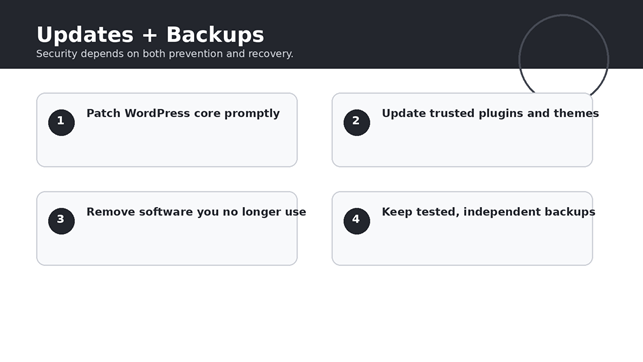
12. Add Monitoring After the Cleanup
Security doesn’t end when the malware scanner says “clean.”
A site can be modified after the cleanup.
That is why monitoring matters.
Watch for:
- New administrator accounts.
- Unexpected plugin installations.
- Unknown files.
- Modified theme files.
- Changes to wp-config.php.
- Unexpected redirects.
- New spam pages.
- Suspicious JavaScript.
- Sudden changes in traffic.
- Unexpected login activity.
The exact monitoring tools depend on your hosting environment, but the principle is universal:
Know what normal looks like, so abnormal changes are easier to spot.
13. Use a Security Plugin or Web Application Firewall Carefully
A reputable security plugin or web application firewall can provide useful additional protection.
Depending on the solution, it may provide features such as:
- Malware scanning.
- Login protection.
- Firewall rules.
- File-change monitoring.
- IP blocking.
- Security alerts.
- Two-factor authentication.
But avoid installing several overlapping security systems without understanding how they interact.
WordPress’s official hardening guide notes that firewall plugins and external web firewalls can provide another layer between malicious traffic and the application.
Think of a security plugin as one layer—not a replacement for updates, strong authentication, backups, and good account management.
14. Secure Your Hosting and SFTP/FTP Access
WordPress security isn’t limited to wp-admin.
If someone obtains hosting or file-transfer credentials, they may be able to modify the website without ever logging into WordPress.
Review:
- Hosting account passwords.
- SFTP/FTP accounts.
- SSH access.
- Database credentials.
- Control-panel accounts.
- API keys and connected services.
Use secure connection methods offered by your host, such as SFTP or SSH where appropriate, rather than relying on insecure legacy workflows.
Also remove old access that is no longer required.
15. Make Sure HTTPS Is Working Everywhere
Your website should use HTTPS consistently.
Check:
- Homepage.
- Login page.
- wp-admin.
- Contact forms.
- Checkout pages.
- APIs or integrations.
- Images and scripts.
A valid HTTPS configuration protects data in transit between the visitor and the website.
If your website still has mixed-content warnings, fix those rather than ignoring them.
Also make sure your WordPress Address and Site Address are configured correctly for your HTTPS setup.
16. Review .htaccess and Other Server Rules
After a malware cleanup, configuration files deserve special attention.
The .htaccess file is particularly important on Apache-based WordPress installations because it can contain rewrite and access-control rules.
WordPress’s hacked-site guidance specifically calls out .htaccess as a file worth checking during remediation because attackers may modify it.
Look for:
- Strange redirects.
- Unknown rewrite rules.
- Unexpected PHP execution rules.
- Obfuscated content.
- Rules you cannot explain.
Do not delete the entire file just because it looks unfamiliar. WordPress and legitimate plugins may add valid rules.
If you are not comfortable reading server configuration, have your hosting provider or a qualified administrator review it.
17. Protect the Site From Brute-Force Login Attempts
Automated bots constantly test login pages across the internet.
That doesn’t mean every login attempt is a successful attack.
But it does mean you should reduce unnecessary exposure.
Useful layers include:
- Strong unique passwords.
- Two-step authentication.
- Login rate limiting.
- Web application firewall rules.
- Monitoring failed logins.
- Removing unused administrator accounts.
Avoid relying on a single trick such as changing the login URL and assuming the problem is solved.
Real security comes from multiple controls working together.
18. Keep Your Computer Secure Too
Your WordPress security can be undermined by the computer you use to manage the website.
If malware or a password-stealing program is running on your computer, changing your WordPress password may not be enough.
WordPress’s hardening documentation explicitly points out that the devices used to administer the website also need to be protected.
Keep your operating system, browser, password manager, and security software updated.
Be especially careful with:
- Unknown browser extensions.
- Pirated software.
- Suspicious email attachments.
- Fake plugin downloads.
- Fake WordPress login pages.
- Shared computers.
Website security starts before you even open wp-admin.
19. Create a Post-Cleanup Security Checklist
Once the cleanup is complete, don’t rely on memory.
Create a repeatable checklist.
For example:
- ☐ WordPress core updated.
- ☐ Plugins updated.
- ☐ Themes updated.
- ☐ Unused plugins removed.
- ☐ Unused themes removed.
- ☐ Administrator accounts reviewed.
- ☐ Passwords changed.
- ☐ Two-step authentication enabled.
- ☐ File editor disabled where appropriate.
- ☐ wp-config.php reviewed.
- ☐ File permissions reviewed.
- ☐ Backups created and tested.
- ☐ Security scan completed.
- ☐ Suspicious files checked.
- ☐ Redirects reviewed.
- ☐ Monitoring enabled.
- ☐ Hosting credentials reviewed.
This turns security from a one-time cleanup into an ongoing process.
20. Don’t Make Security Changes Blindly
Security hardening can sometimes break a website.
For example, changing file permissions too aggressively can stop WordPress or plugins from working. Restricting access to server files without understanding the application can cause unexpected errors. Disabling functionality without testing can affect legitimate workflows.
That’s why backups and staging environments matter.
Make one change at a time when possible.
Test the website after each major change.
Keep notes about what you changed.
If something breaks, you’ll know what to investigate instead of trying to reverse ten changes at once.
What to Do If You Suspect the Website Is Still Compromised
If you still see suspicious behavior after cleanup, don’t assume another plugin will magically fix it.
Look for evidence.
Check:
- Unknown administrator accounts.
- Recently modified files.
- Suspicious PHP files.
- Unexpected redirects.
- Spam content.
- Unknown scheduled tasks.
- New plugins or themes.
- Hosting account activity.
- Server logs.
- Database changes.
If the compromise is serious, consider taking the website into a controlled maintenance or staging environment while the investigation continues.
For high-value websites, professional incident response may be appropriate.
The key point is to avoid repeatedly cleaning the same visible malware while leaving the underlying access path untouched.
A Simple 24-Hour Post-Cleanup Plan
If you have just cleaned a WordPress website, you don’t need to change fifty settings in the first five minutes.
A practical sequence is:
First, confirm the site is functioning.
Then update WordPress, plugins, and themes.
Next, review users and change relevant credentials.
Enable two-step authentication.
Remove software you don’t need.
Review sensitive files and permissions.
Create a clean backup.
Enable monitoring.
Finally, test the website from the perspective of a normal visitor.
Check the homepage, forms, important pages, search, login, and any ecommerce functionality.
This gives you a much stronger baseline than simply confirming that the homepage loads.
Final Thoughts
A malware cleanup gives you a clean starting point. Security hardening helps you keep it that way.
The most important thing is not to chase a mythical “100% secure WordPress website.” Instead, build layers.
Keep software updated.
Use strong, unique credentials.
Protect administrator accounts.
Remove unnecessary software.
Limit permissions.
Protect sensitive configuration files.
Maintain independent backups.
Monitor important changes.
And keep an eye on the hosting environment as well as WordPress itself.
WordPress’s official security guidance follows the same general philosophy: limit access, contain potential damage, keep trusted backups, use trusted software sources, and stay current with security updates.
A cleaned website is a recovery milestone.
A hardened website is a website you are actively maintaining.
That difference matters.
Frequently Asked Questions
Is WordPress secure after a malware cleanup?
A cleanup removes the known malicious content, but it does not automatically eliminate the original weakness. Hardening, credential changes, updates, backups, and monitoring should follow the cleanup.
Should I change all WordPress passwords after a hack?
For a compromised site, review and change relevant credentials after you have confidence the site is clean. Include WordPress, hosting, SFTP/FTP, database, DNS, CDN, and other connected services as appropriate.
Is a security plugin enough?
No single plugin should be treated as a complete security strategy. A security plugin can add useful controls, but updates, authentication, least privilege, backups, secure hosting, and monitoring still matter.
Should I delete every inactive plugin?
If you don’t need a plugin, removing it reduces unnecessary code on the site. Before deleting anything, confirm that no important workflow depends on it.
What is the most important WordPress security step?
There isn’t one setting that solves everything. Keeping WordPress and trusted plugins/themes updated, protecting administrator accounts, limiting access, and maintaining reliable backups are foundational controls.
Can I make WordPress 100% secure?
No online website can honestly guarantee zero risk. The practical goal is to reduce attack surface, protect access, detect suspicious changes, and recover quickly if something goes wrong.