

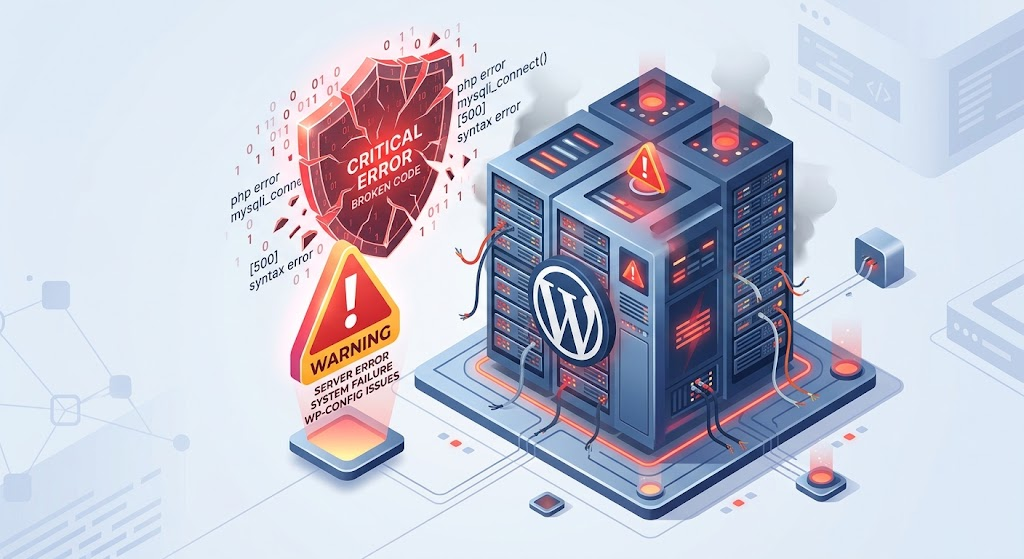
Encountering a PHP Fatal Error on your WordPress site can be terrifying. Usually, it results in the dreaded White Screen of Death (WSoD) or a blunt error message staring you in the face, abruptly locking you and your visitors out of the website.
Unlike minor notices or warnings, a fatal error means PHP has hit a critical problem it cannot recover from, forcing it to halt script execution entirely.
In this article, we’ll explore the most common causes of WordPress PHP fatal errors and provide step-by-step instructions on how to fix them quickly.
What is a WordPress PHP Fatal Error?
A PHP fatal error occurs when your server attempts to run a piece of code that violates PHP rules or calls functions that don’t exist. When this happens, WordPress stops loading immediately.
A typical error message looks like this:
Fatal error: Uncaught Error: Call to undefined function non_existent_function() in
/home/username/public_html/wp-content/themes/my-theme/functions.phpon line 45
This message is actually your best friend—it tells you the exact file and line number causing the crash.
1. Exceeded Memory Limit (Allowed Memory Size Exhausted)
The Cause
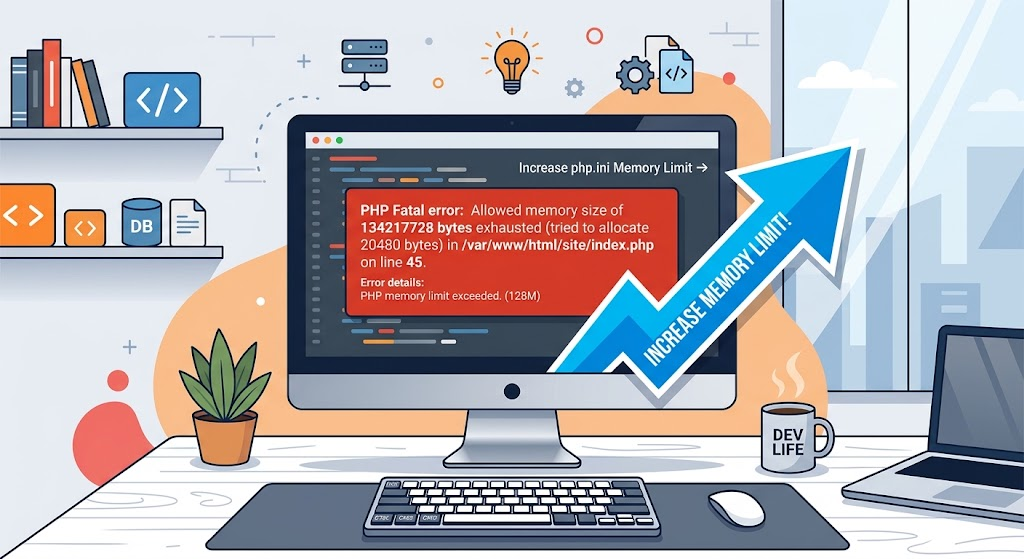
WordPress has a default memory limit allocated to PHP. When a heavy plugin, a complex theme, or a resource-intensive operation (like bulk-editing products or running imports) exceeds this limit, PHP throws a fatal error.
Error Example:
Fatal error: Allowed memory size of 67108864 bytes exhausted (tried to allocate 20480 bytes)
The Fix
You need to increase your PHP memory limit by editing your wp-config.php file (located in your website’s root directory via FTP or cPanel File Manager).
- Open
wp-config.php. - Find the line that says:
/* That's all, stop editing! Happy publishing. */ - Just above that line, add the following snippet:PHP
define('WP_MEMORY_LIMIT', '256M'); - Save the file and reload your website.
2. Incompatible or Buggy Plugins and Themes
The Cause
Most fatal errors happen right after updating a plugin/theme or installing a new one. Poorly coded plugins, outdated scripts, or conflicts between two different plugins can trigger unhandled exceptions.
The Fix
If you can still access your WordPress Dashboard, simply navigate to Plugins > Installed Plugins, locate the culprit, and deactivate or delete it.
If you are locked out of your dashboard due to the White Screen of Death:
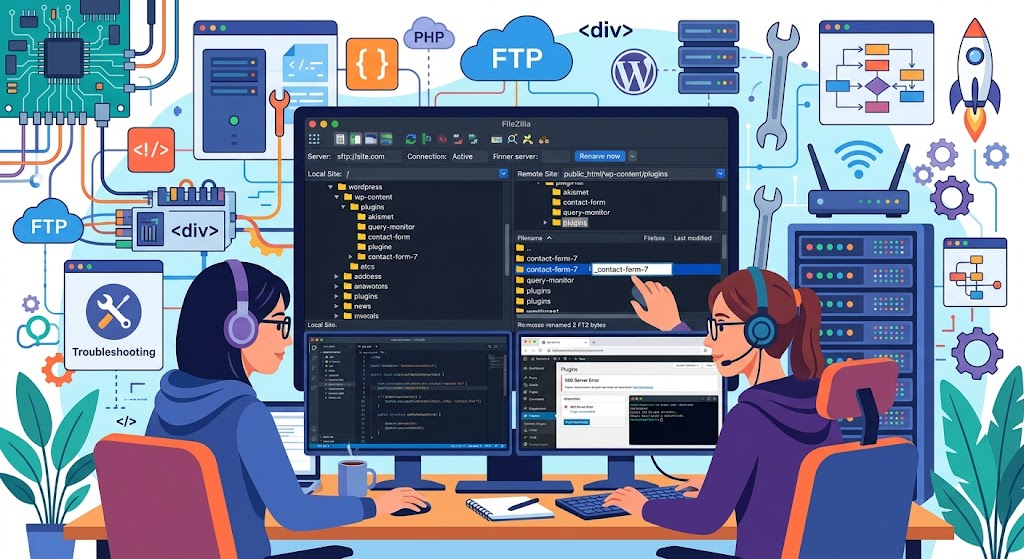
- Access your site via FTP or Hosting File Manager.
- Navigate to
wp-content/. - Rename the
pluginsfolder toplugins_old. (This deactivates all plugins instantly). - Check your site. If it loads, rename the folder back to
plugins, log in, and activate your plugins one by one until you find the broken one.
3. Outdated PHP Version
The Cause
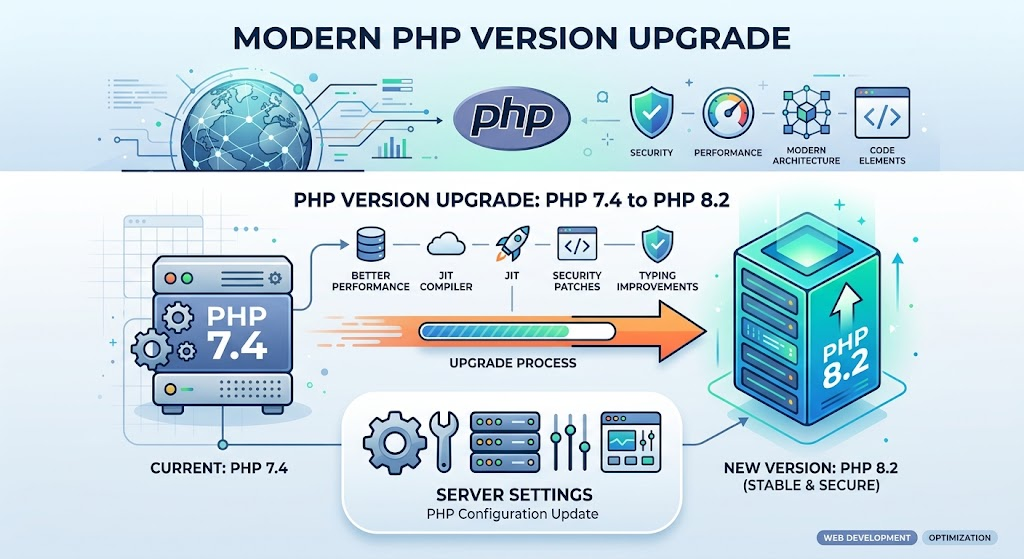
WordPress runs on PHP. Many modern plugins and themes require newer PHP versions (like PHP 8.0, 8.1, or 8.2). If your hosting server is running an older version (like PHP 7.4 or lower), newer code structures will throw fatal syntax errors.
Error Example:
Parse error: syntax error, unexpected ‘?’ in /path/to/file.php on line 12
The Fix
- Log into your hosting control panel (cPanel, Plesk, or SiteGround Site Tools).
- Look for the tool named Select PHP Version or MultiPHP Manager.
- Upgrade your PHP version to 8.1 or 8.2.
- Test your website. (Always ensure your core, themes, and plugins are updated before upgrading PHP to avoid secondary conflicts).
4. Corrupted WordPress Core Files
The Cause
During an automatic update, a file transfer interruption (like a dropped connection) can leave core WordPress files incomplete or corrupted, resulting in fatal execution errors.
The Fix
Reinstalling WordPress core files manually fixes this without touching your content or settings:
- Go to WordPress.org/download and download the latest zip file.
- Extract the zip file on your computer.
- Delete the
wp-contentfolder and thewp-config-sample.phpfile from the extracted folder (so you don’t overwrite your content/settings). - Upload the remaining files via FTP to your server, choosing Overwrite when prompted.
Pro Tip: How to Enable WordPress Debugging
If your site is showing a blank white screen instead of a helpful error message, you can turn on debugging to see the exact cause.
- Open your
wp-config.phpfile. - Find:PHP
define( 'WP_DEBUG', false ); - Change it to:PHP
define( 'WP_DEBUG', true ); define( 'WP_DEBUG_DISPLAY', true );
This will force the error message to appear directly on your screen, pointing you straight to the faulty file.
Summary Checklist
| Error Type | Common Culprit | Quick Solution |
| Memory Exhausted | Heavy plugins/scripts | Increase memory limit in wp-config.php |
| Plugin Conflict | Bad update or broken code | Rename plugins folder via FTP |
| Syntax Error | Outdated PHP version | Upgrade to PHP 8.1+ via hosting cPanel |
| Corrupted Files | Interrupted update | Reupload fresh WordPress core files |