Aapke pichle article ki tarah is article mein bhi images, captions, headings, SEO title aur meta description shamil honge. Images ke liye JPG format use karne ki koshish ke bajaye, neeche article mein JPG image URLs diye gaye hain jahan available ho. Aap is article ko apni WordPress website ke post editor mein add kar sakte hain.
WordPress Debug.log Explained: How to Read Error Logs
WordPress is one of the most popular website platforms, but sometimes errors can appear without explaining exactly what went wrong. Your website may show a critical error, a blank screen, a broken plugin, or a feature that suddenly stops working.
This is where the WordPress debug.log file becomes useful. It records PHP warnings, notices, and errors that can help you identify the source of a problem.
In this guide, you will learn what WordPress debug logs are, how to enable debugging, how to read error messages, and how to fix common errors safely.


9
Debug logs help developers investigate WordPress errors and diagnose website problems.
What Is WordPress Debug.log?
WordPress debug.log is a log file that can record errors and warnings generated by WordPress, PHP code, themes, and plugins when debugging is enabled.
Instead of guessing why your website is malfunctioning, you can inspect the log to find clues about the underlying problem.
For example, a debug log may reveal:
- A plugin calling an undefined function.
- A theme using an outdated PHP feature.
- A missing file or incorrect file path.
- A database-related warning.
- A PHP fatal error that interrupts a page request.
WordPress typically stores this file at:
wp-content/debug.log
The file is not automatically available on every WordPress installation. You generally need to enable debugging and configure logging first.
1. How to Enable WordPress Debug Logging


To generate a debug log, you need to configure the WordPress debugging constants in your wp-config.php file.
This file is located in your WordPress installation’s main directory.
Step 1: Open wp-config.php
You can access the file through your hosting control panel’s File Manager or by using SFTP.
Before editing it, create a backup of the original file.
Step 2: Add the Debugging Settings
Find the following line in wp-config.php:
/* That's all, stop editing! Happy publishing. */
Add these settings above that line:
define( 'WP_DEBUG', true );
define( 'WP_DEBUG_LOG', true );
define( 'WP_DEBUG_DISPLAY', false );
If these constants already exist, update their existing values instead of defining them a second time.
Step 3: Reproduce the Error
Visit the page where the problem occurs and repeat the action that triggers the error.
WordPress may then write the relevant messages to:
wp-content/debug.log
Important: Keep error display disabled on production websites. Displaying PHP errors to visitors can expose sensitive server paths and technical information.
2. Where to Find the WordPress Debug.log File


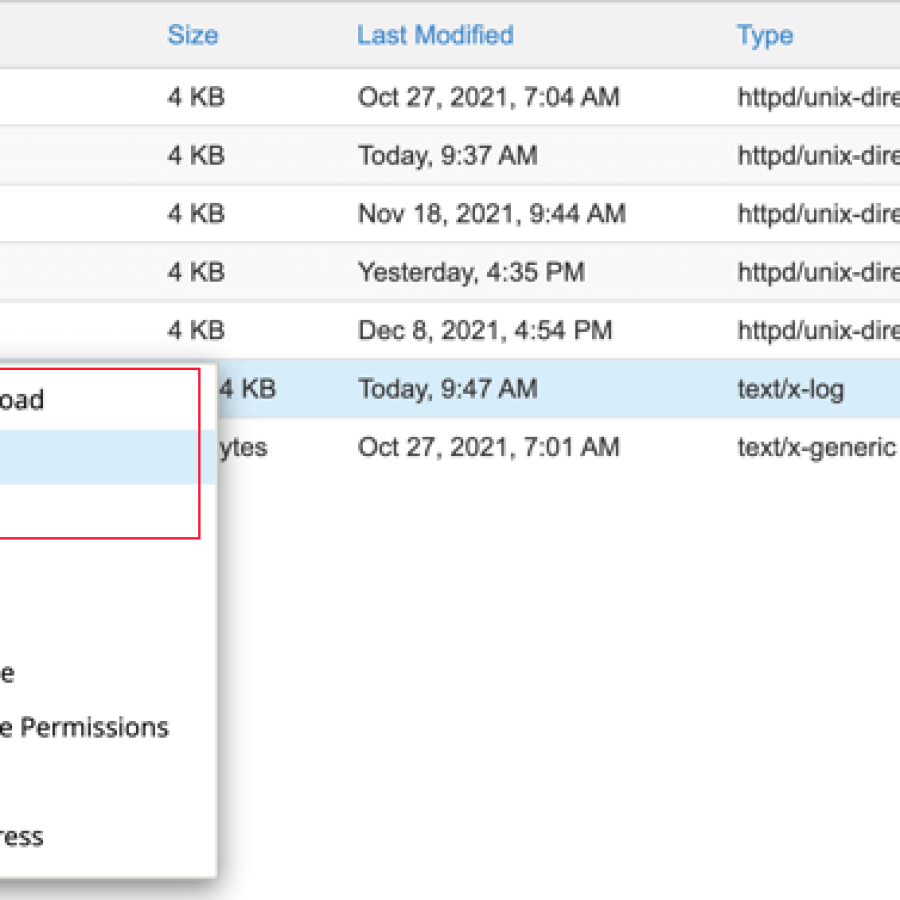
After enabling logging, open your hosting File Manager and navigate to the WordPress installation directory.
Follow this path:
public_html/wp-content/debug.log
The exact location can vary depending on your hosting provider and installation structure.
If the file does not exist, try visiting the affected page again. Also check that WordPress can write to the relevant directory and that your hosting environment allows PHP error logging.
What If the File Is Empty?
An empty log does not necessarily mean your website has no problems.
Possible reasons include:
- The error has not occurred since logging was enabled.
- The issue is generated by JavaScript rather than PHP.
- Logging is configured incorrectly.
- File permissions prevent the log from being written.
- Your hosting provider uses a separate PHP error log.
Some hosting providers also offer error logs directly in their control panels.
3. How to Read WordPress Debug.log Errors


8
A debug log may initially look confusing because it contains file paths, line numbers, timestamps, and technical messages.
However, most entries follow a recognizable pattern.
For example, a log entry might look like this:
[20-Oct-2026 08:30:00 UTC]
PHP Warning: Undefined array key "name"
in /home/example/public_html/wp-content/plugins/example-plugin/file.php on line 125
Here is what each part means:
- Timestamp: When the message was recorded.
- PHP Warning: The type of issue detected.
- Error message: The specific problem PHP encountered.
- File path: The file associated with the warning.
- Line number: The approximate location of the relevant code.
In this example, the code attempts to access an array key named name that does not exist.
The file path points to a plugin, so that plugin is a reasonable place to begin investigating. However, the warning alone does not prove that the plugin caused every problem on the website.
4. Understanding Common WordPress Error Types
Different log messages indicate different levels of severity. Understanding the terminology helps you decide which problems need immediate attention.
PHP Fatal Errors
A fatal error can interrupt PHP execution and prevent a page or request from completing.
Example:
PHP Fatal error: Uncaught Error:
Call to undefined function example_function()
This means PHP attempted to call a function that was unavailable in that execution context.
Possible causes include an incompatible plugin, missing dependency, outdated code, or a function that was never loaded.
PHP Warnings
Warnings indicate potential problems that PHP can often recover from.
Example:
PHP Warning: Undefined array key "title"This suggests that code tried to access an array key that was not defined.
Warnings may not take the website offline, but they can reveal bugs that should be corrected.
PHP Notices
Notices generally indicate unexpected or potentially problematic coding practices.
Example:
PHP Notice: Undefined variable: exampleThe exact wording depends on the PHP version. Newer PHP versions may report similar issues as warnings.
Deprecated Function Messages
Deprecated messages indicate that a function or feature is outdated and may be removed in a future version.
Example:
PHP Deprecated: Example function is deprecatedThese messages often appear when an older theme or plugin uses functionality that newer PHP versions discourage.
5. How to Identify Which Plugin or Theme Is Causing the Error


6
One of the most useful parts of a debug log is the file path.
For example:
wp-content/plugins/contact-plugin/includes/form.php
This path suggests that the message relates to a file inside a plugin.
Similarly:
wp-content/themes/example-theme/functions.php
This path points to a theme file.
How to Investigate the Problem
- Find the first relevant error in the log.
- Check the file path and line number.
- Note which plugin, theme, or WordPress component is involved.
- Check whether the problem started after a recent update.
- Review the developer’s documentation or support resources.
- Test suspected conflicts on a staging website.
Do not immediately edit plugin or theme files. Updates can overwrite your changes, and modifying code without understanding the cause can create additional problems.
6. Fixing Common WordPress Debug.log Errors


6
The correct fix depends on the error message. Here are several common examples and their possible solutions.
Undefined Function Error
This can happen when a function is unavailable because a dependency is missing or incompatible.
Possible fixes:
- Update the affected plugin or theme.
- Check whether a required plugin is active.
- Verify compatibility with your installed PHP version.
- Contact the plugin developer if the error persists.
Undefined Variable or Array Key
This error means code attempts to use a variable or array key that is not available.
Possible fixes:
- Check whether the variable has been initialized.
- Confirm that the expected array key exists.
- Review the plugin or theme code.
- Install an official fix if the issue is caused by third-party software.
Memory Limit Errors
A memory-related error may occur when PHP reaches its available memory limit.
Possible fixes:
- Identify scripts or plugins consuming excessive memory.
- Check your hosting plan’s PHP memory settings.
- Optimize expensive operations.
- Contact your hosting provider if a higher limit is genuinely needed.
Increasing the memory limit does not necessarily fix the underlying cause.
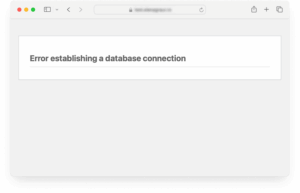
Database Connection Errors
Database errors may be caused by incorrect configuration, unavailable database services, or server resource problems.
Possible fixes:
- Check your hosting provider’s database status.
- Verify database settings carefully.
- Review the hosting error logs.
- Contact your hosting provider if the database service is unavailable.
Avoid changing database credentials unless you know the correct values.
7. How to Fix the WordPress White Screen of Death Using Debug Logs


8
The WordPress White Screen of Death occurs when a page displays a blank screen instead of its expected content. A fatal PHP error is one possible cause, although other issues can produce similar symptoms.
Steps to Troubleshoot
Step 1: Enable WordPress debugging and logging while keeping errors hidden from public visitors.
Step 2: Reproduce the blank screen by visiting the affected page.
Step 3: Open wp-content/debug.log and look for fatal errors recorded at the relevant time.
Step 4: Identify the associated plugin, theme, or file.
Step 5: Test a suitable fix on a staging website or restore a known-good backup if necessary.
If you cannot access the WordPress dashboard, your hosting File Manager or SFTP may still allow you to inspect the files.
Always make a backup before disabling plugins or changing theme files.
8. Is It Safe to Keep WordPress Debug Logging Enabled?
Debug logging is useful during troubleshooting, but leaving it enabled indefinitely on a production website can create unnecessary risks.
Log files may contain internal file paths, technical details, and information that should not be publicly accessible.
A large log can also consume disk space over time.
Recommended Practices
- Enable logging only when needed.
- Keep
WP_DEBUG_DISPLAYset tofalseon production sites. - Restrict access to log files.
- Never share logs publicly without checking for sensitive information.
- Review and remove old logs when appropriate.
- Disable debugging when troubleshooting is complete.
After resolving the problem, restore your original debugging settings or set the relevant constants to their appropriate production values.
Also check your hosting provider’s PHP logging configuration, because server-level logs may remain enabled independently.
9. How to Clear or Reset WordPress Debug.log
If your debug log has become very large, you may want to archive or clear it after reviewing the contents.
Before clearing the file, save a copy if you might need it for further troubleshooting.
Steps to Reset the Log
- Open your hosting File Manager.
- Navigate to
wp-content. - Locate
debug.log. - Download a backup if the entries may be useful.
- Clear the file contents or remove the old log if appropriate.
- Reproduce the issue again to collect fresh entries.
Make sure you do not delete other WordPress files by mistake. If permissions prevent you from clearing the log, contact your hosting provider rather than changing permissions indiscriminately.
10. WordPress Debug.log Best Practices
Following good debugging practices can help you troubleshoot errors more efficiently.
- Always back up your website before making changes.
- Record the exact steps that reproduce the error.
- Focus on relevant log entries and timestamps.
- Check file paths before identifying the likely source.
- Test updates on a staging website.
- Avoid editing core WordPress files.
- Protect logs from public access.
- Disable temporary debugging settings when finished.
- Keep WordPress, themes, and plugins updated.
Remember that not every warning requires an immediate code change. Prioritize fatal errors, broken functionality, security concerns, and problems that affect visitors.
Frequently Asked Questions
Where is the WordPress debug.log file located?
It is commonly located at wp-content/debug.log within your WordPress installation. The file may not exist until debugging and logging have been configured.
How do I enable WordPress debug logging?
Set WP_DEBUG and WP_DEBUG_LOG to true in wp-config.php, and set WP_DEBUG_DISPLAY to false to avoid displaying PHP errors to visitors.
Why is my WordPress debug.log empty?
The error may not have occurred since logging was enabled, logging may be misconfigured, or your hosting environment may use a separate error log.
Can debug.log identify a broken plugin?
It can provide useful clues, particularly when the file path points to a plugin. However, further testing may be needed to establish the underlying cause.
Should I delete debug.log after fixing an error?
You can archive or clear the file after reviewing it. Protect the file from public access, and disable temporary debugging settings when you finish troubleshooting.
Does WordPress debug.log record every website error?
No. It primarily records the PHP and WordPress messages captured by the active logging configuration. Browser JavaScript errors, server failures, and other problems may require separate diagnostic tools.
Conclusion
WordPress debug.log is a valuable troubleshooting tool that helps website owners and developers understand what is happening behind the scenes.
By enabling debugging carefully, reading timestamps and file paths, and identifying fatal errors, warnings, and deprecated functions, you can investigate many common WordPress problems more efficiently.
Always protect your log files, back up your website before making changes, and test potential fixes on a staging site whenever possible.
Final tip: Use debug logs to find clues about the underlying problem rather than randomly disabling plugins or editing code. A careful, systematic approach is safer and more effective.