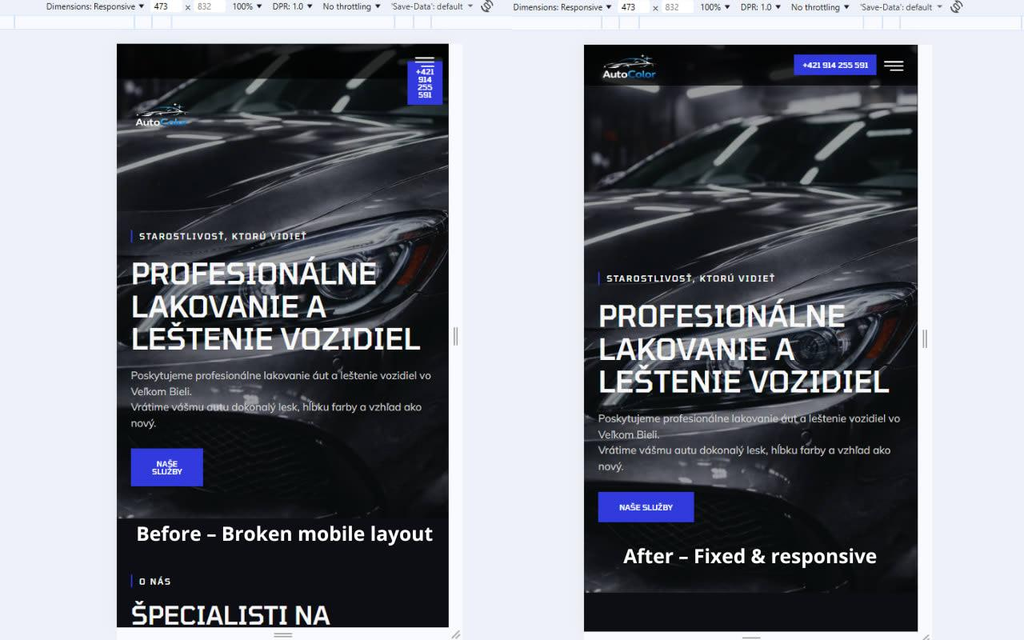
Have you ever opened your WordPress website and noticed that your Elementor layout is broken? Perhaps the page design looks completely different from the Elementor editor, columns are misaligned, images are missing, or the mobile layout is not displaying correctly.
A broken Elementor layout can affect your website’s appearance, user experience, and conversions. Fortunately, most Elementor layout issues can be fixed without rebuilding the entire page.
In this guide, we will explain the most common causes of Elementor layout problems and provide practical, step-by-step solutions to help you restore your website’s design.
What Does a Broken Elementor Layout Look Like?
An Elementor layout problem occurs when a page does not display as intended. The issue may appear in the WordPress editor, on the live website, or only on certain devices.
Common symptoms include:
- Columns or containers appearing in the wrong positions.
- Text, buttons, and images overlapping.
- Sections displaying incorrect spacing.
- Fonts, colors, or styles disappearing.
- The page looking different on mobile devices.
- Changes in Elementor not appearing on the live website.
- The header, footer, or page width looking incorrect.
- Images or background images failing to load.
Image 1: Examples of a broken Elementor layout
Suggested image: Add a real screenshot of an Elementor page showing overlapping elements, incorrect spacing, or misaligned columns. Use a side-by-side comparison of the broken layout and the corrected design.
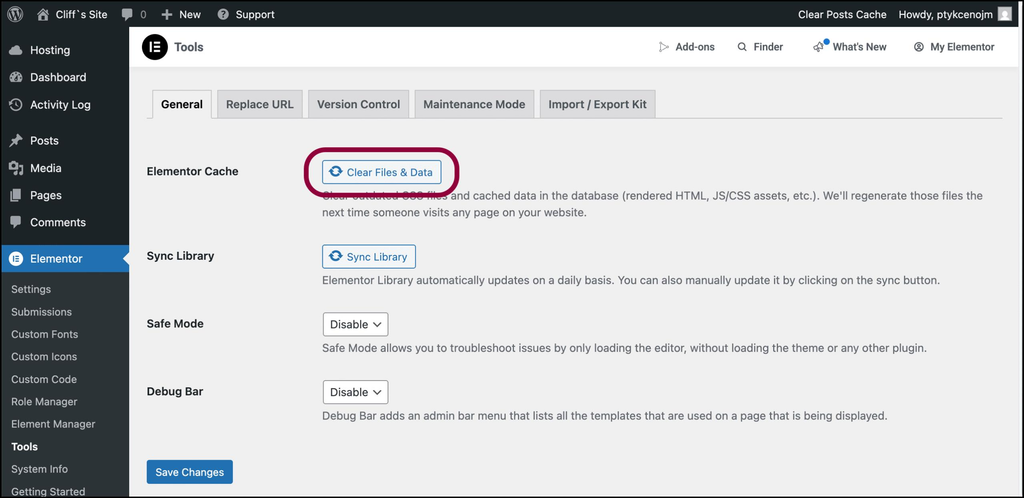
1. Clear Elementor and Website Cache
One of the most common reasons an Elementor layout appears broken is cached CSS or outdated website files.
Elementor generates CSS files to control the appearance of page elements. When you update a design, an older cached stylesheet may continue loading, making the page appear incorrectly.
How to fix it
- Open your WordPress dashboard.
- Navigate to Elementor → Editor → Tools. The exact menu labels may vary by Elementor version.
- Find the option to regenerate CSS and data or clear generated files.
- Run the available regeneration option.
- Clear your WordPress caching plugin’s cache.
- Clear your CDN cache if you use a service such as Cloudflare.
- Open your website in a private or incognito browser window.
If the problem persists, clear your browser cache and reload the page.
Important: Regenerating Elementor files and clearing caches are generally safe troubleshooting steps, but verify the live page afterward.
Image 2: Elementor tools and CSS regeneration
Suggested image: Add a genuine screenshot of the Elementor Tools screen showing the CSS regeneration or file-clearing option.
2. Check for Plugin Conflicts
WordPress plugins add functionality to your website, but occasionally two plugins may interfere with one another.
A plugin conflict can cause Elementor widgets to disappear, the editor to stop loading, or page styling to break unexpectedly.
Plugins that affect caching, optimization, CSS, JavaScript, forms, and page layouts are particularly worth investigating.
How to identify a plugin conflict
- Back up your website before making significant changes.
- If possible, test on a staging website rather than your live site.
- Temporarily deactivate nonessential plugins, keeping Elementor and its required dependencies active.
- Check whether the layout returns to normal.
- Reactivate plugins one at a time and test after each activation.
- When the problem returns, investigate the most recently activated plugin.
Do not leave essential security, backup, or ecommerce plugins disabled on a live website.
If you cannot safely deactivate plugins on your production site, ask your hosting provider to create a staging environment.
Image 3: Identifying a WordPress plugin conflict
Suggested image: Add a screenshot of the WordPress Plugins page with the plugin list visible. Do not display passwords, private website details, or customer information.
3. Update Elementor and Check Version Compatibility
Using outdated or incompatible software can lead to unexpected layout issues.
For example, your version of Elementor may not work correctly with an older theme, Elementor Pro, or another plugin. An update can also introduce a compatibility issue if related components are not updated together.
How to fix it
- Open Dashboard → Updates in WordPress.
- Check whether WordPress, Elementor, Elementor Pro, and your active theme have available updates.
- Review the relevant changelogs and compatibility requirements.
- Back up your website before updating.
- Test updates on a staging website whenever possible.
- Update compatible components and inspect the affected pages.
If your website started breaking immediately after an update, check the plugin’s changelog and support information. A controlled rollback to a previously working version may help, but it should be performed with a backup and a plan to restore security updates.
Avoid updating a production website blindly when it handles orders, bookings, or other important transactions.
Image 4: Checking WordPress and Elementor updates
Suggested image: Add a genuine screenshot of the WordPress Updates screen showing the installed versions and available updates.
4. Fix Incorrect Responsive Settings
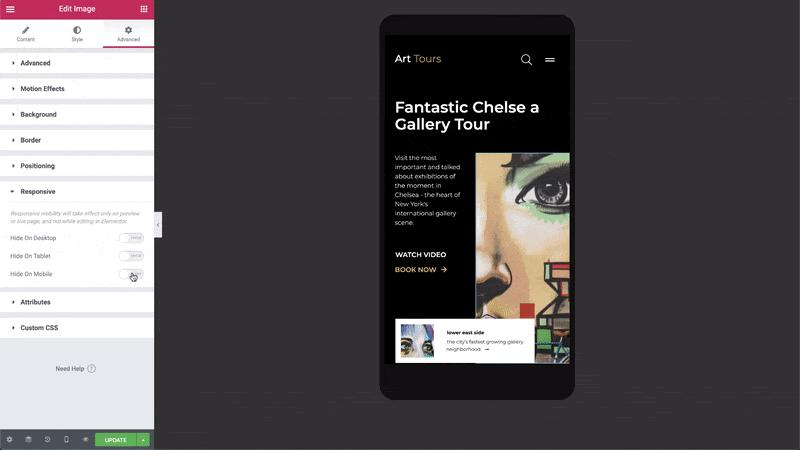
A page may look perfect on a desktop computer but appear broken on a tablet or mobile phone.
This often happens because Elementor allows different styling values for different screen sizes. A margin, padding value, column width, or font size that works on desktop may not work on a smaller screen.
Common responsive layout problems
- Headings extending beyond the screen.
- Images being cropped or stretched.
- Columns becoming too narrow.
- Buttons overlapping other content.
- Excessive white space between sections.
- Horizontal scrolling on mobile devices.
How to fix responsive issues
- Open the affected page with Elementor.
- Use the responsive mode controls to preview desktop, tablet, and mobile layouts.
- Select the element that looks incorrect.
- Review its width, padding, margin, alignment, and typography settings.
- Adjust device-specific values where necessary.
- Preview the page at several screen widths.
- Update the page and test the live version.
Avoid using large negative margins or fixed pixel widths as quick fixes unless you understand their effect across screen sizes.
Image 5: Elementor responsive editing mode
Suggested image: Add a screenshot of Elementor’s responsive preview with desktop, tablet, and mobile layouts, highlighting a heading or container that needs adjustment.

5. Check Your Theme and Elementor Page Layout Settings
Your WordPress theme controls important parts of the website’s structure, including the header, footer, content area, and default page width.
If the theme’s layout settings conflict with your Elementor page settings, you may see unexpected margins, sidebars, narrow content areas, or unwanted page titles.
How to fix theme-related layout problems
- Open the affected page in the WordPress editor.
- Locate the page template or layout settings.
- Check whether the page is using the default template, Elementor Full Width, or Elementor Canvas, depending on the options available.
- Choose the template that matches your intended design.
- Review the theme’s content width and sidebar settings.
- If you use Elementor Theme Builder, check the display conditions for the relevant header, footer, or template.
Remember that Elementor Canvas generally removes the theme’s header and footer, while full-width templates usually retain them. The exact behavior depends on the theme and available templates.
If several pages have the same problem, investigate global theme settings before editing every page individually.
Image 6: Elementor page layout settings
Suggested image: Add a real screenshot of the page settings panel showing the available layout or template options.
6. Regenerate CSS and Check CSS Optimization
Elementor layout issues can also occur when CSS files are generated incorrectly, custom CSS contains errors, or an optimization plugin changes the order in which stylesheets load.
CSS controls the size, spacing, alignment, colors, and positioning of elements. If essential styles are missing or overridden, the page may appear unstyled or misaligned.
Steps to troubleshoot CSS problems
- Regenerate Elementor’s generated CSS files.
- Clear all relevant caches.
- Temporarily disable CSS minification, combination, or asynchronous CSS loading in your optimization plugin.
- Reload the affected page.
- If the layout is restored, enable optimization features individually to identify the problematic setting.
- Inspect custom CSS for incorrect selectors, missing braces, or rules that override Elementor styles.
If you use custom CSS, pay particular attention to broad selectors such as div, .elementor-widget, or *. These may unintentionally affect many elements across the website.
Do not disable all optimization features permanently without testing their effect on performance.
Image 7: Inspecting CSS-related layout problems
Suggested image: Add a genuine browser developer tools screenshot showing the affected element’s CSS rules. Highlight an overridden style or a missing stylesheet if the evidence supports it.
7. Check JavaScript Errors and Browser Console Messages
JavaScript helps Elementor’s editor and interactive widgets work correctly. If a script fails to load or produces an error, certain widgets or editor controls may stop working.
This can happen because of plugin conflicts, optimization settings, blocked resources, or incompatible third-party scripts.
How to investigate JavaScript errors
- Open the affected page in Chrome or another browser with developer tools.
- Open the Console tab.
- Reload the page and look for red error messages.
- Check whether the error references Elementor, a particular plugin, a theme script, or an external resource.
- Temporarily disable JavaScript optimization on a staging site.
- Test again and identify the specific script or setting responsible.
A console error does not automatically mean that Elementor is the cause. Investigate the file or plugin mentioned in the error before changing your configuration.
If you are not familiar with JavaScript debugging, share the relevant error message with your developer or hosting support team.
Image 8: Browser console showing a JavaScript error
Suggested image: Add a screenshot of the browser developer tools Console tab with a relevant error highlighted. Remove any private tokens or sensitive information.
8. Fix Missing Images and Background Images
Sometimes a page appears broken because images fail to load or background images disappear.
Possible causes include incorrect image URLs, deleted media files, permissions problems, mixed-content issues, or an optimization plugin delaying or blocking image requests.
How to fix missing images
- Open the affected image URL directly in your browser.
- Check that the image still exists in the WordPress Media Library.
- Edit the relevant Elementor widget and verify the selected image.
- Check background-image settings on the relevant section or container.
- Confirm that the website uses the correct HTTPS URLs.
- Clear image optimization and CDN caches.
- Test whether lazy loading or image optimization settings affect the result.
If the image URL returns a 404 error, restore the file or select the correct image. If the image loads directly but not on the page, inspect browser console and network errors to identify what is preventing it from displaying.
Image 9: Troubleshooting a missing Elementor image
Suggested image: Add a real screenshot comparing an Elementor image widget with a missing image against the corrected widget with the image loaded.
9. Check Elementor Containers, Columns, and Spacing
Incorrect container settings are another common reason for broken layouts.
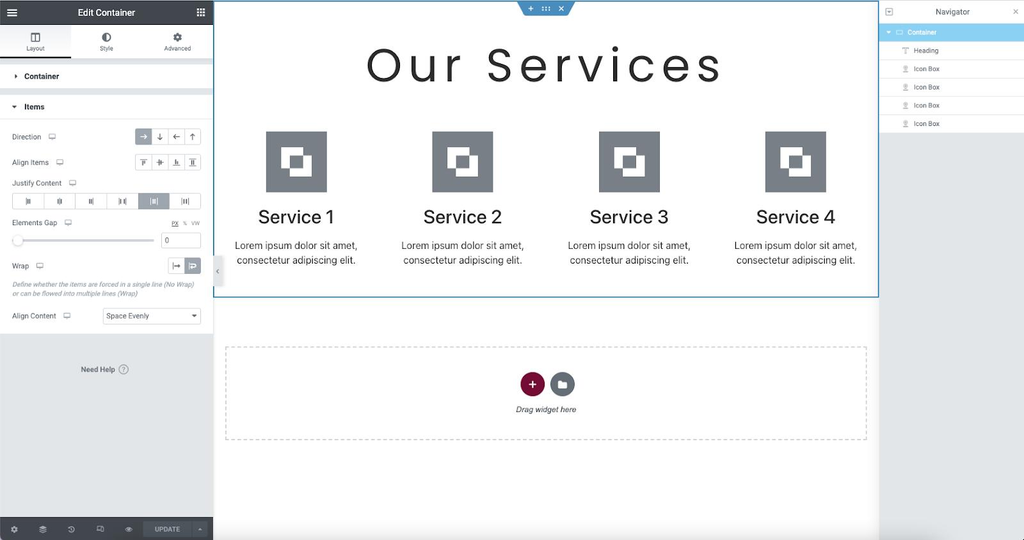
Elementor designs may use Flexbox Containers, traditional sections and columns, or a mixture of older and newer layout structures. Incorrect width, direction, alignment, gap, or wrapping settings can cause elements to move unexpectedly.
Common container issues
- Two columns appear stacked when they should be side by side.
- Content does not align vertically.
- Containers extend beyond the viewport.
- Widgets have too much space between them.
- Elements overlap because of positioning settings.
How to fix container problems
- Open the affected page in Elementor.
- Select the parent container or section.
- Check the content width, direction, alignment, justification, and gap settings.
- Review child element widths and flex-grow settings where applicable.
- Check whether wrapping is enabled when it should be.
- Review absolute positioning, transforms, and negative margins.
- Test the result in desktop, tablet, and mobile previews.
Whenever possible, fix spacing at the parent container level rather than adding individual margins to every child widget.
This approach creates a more consistent design and makes future adjustments easier.
Image 10: Elementor container alignment settings
Suggested image: Add a real screenshot of the container layout panel with direction, alignment, gap, and width settings visible.
10. Fix Elementor Editor Loading Problems
Sometimes the live website looks fine, but Elementor’s editor gets stuck on the loading screen, displays a blank panel, or fails to open.
This may result from insufficient server resources, a plugin conflict, PHP errors, browser extensions, or an incompatible script.
Troubleshooting steps
- Try opening Elementor in a different browser or an incognito window.
- Disable browser extensions temporarily if they interfere with the editor.
- Clear the website and browser caches.
- Check whether your WordPress hosting meets Elementor’s current server requirements.
- Review PHP error logs for fatal errors or memory-related problems.
- Test for plugin conflicts on a staging website.
- Ask your hosting provider to investigate server resource limits if the editor still fails.
Increasing PHP memory may help when memory exhaustion is confirmed, but it will not resolve every editor-loading issue. The correct fix depends on the actual error.
Image 11: Elementor editor stuck on loading
Suggested image: Add a screenshot of the actual Elementor editor loading issue, followed by a screenshot of the editor working correctly.
11. Restore a Page Using Elementor Revision History
If a layout broke after recent editing, a previous version of the page may help you restore the design.
Elementor’s revision history can show earlier saved versions, depending on the editing history available.
How to restore an earlier design
- Open the affected page in Elementor.
- Find the History panel.
- Review the Revisions tab.
- Select a revision from before the layout problem occurred.
- Preview the content carefully.
- Restore the appropriate revision if it contains the correct layout.
- Save and test the live page.
Before restoring a revision, preserve a backup of the current page if you may need its newer content.
Revision history is particularly useful when a layout breaks immediately after changing widget settings, deleting a container, or modifying spacing.
Image 12: Elementor revision history panel
Suggested image: Add a genuine screenshot of the Elementor History panel showing previous revisions.
12. Prevent Elementor Layout Problems in the Future
Fixing a broken layout is important, but preventing the same problem from happening again saves time and reduces downtime.
Follow these best practices:
- Keep WordPress, Elementor, your theme, and plugins compatible and updated.
- Back up your website before major changes.
- Test significant updates on a staging website.
- Avoid installing unnecessary plugins that perform overlapping functions.
- Use responsive settings rather than relying on fixed widths everywhere.
- Keep custom CSS organized and document important overrides.
- Clear and regenerate cached files when appropriate after significant design changes.
- Test important pages on desktop, tablet, and mobile.
- Monitor browser console errors after changing scripts or optimization settings.
- Avoid making several major changes at once when troubleshooting.
A consistent maintenance routine makes Elementor websites easier to manage and less likely to experience unexpected design issues.
Quick Troubleshooting Checklist
Use this checklist to narrow down the cause of your Elementor layout problem.
- Regenerate Elementor CSS and clear caches.
- Check whether the issue affects one page or the entire website.
- Test the page on desktop, tablet, and mobile.
- Review theme templates and container settings.
- Check for plugin and theme conflicts.
- Verify Elementor and Elementor Pro compatibility.
- Inspect missing images and stylesheet requests.
- Check browser console errors.
- Review hosting logs if the editor will not load.
- Restore an earlier revision if recent editing caused the issue.
Frequently Asked Questions
Why does my Elementor page look different from the editor?
This can happen because of cached CSS, theme styles, optimization settings, responsive rules, or differences between the editor and the live page. Start by regenerating Elementor CSS, clearing caches, and checking the live page in a private browser window.
Why is my Elementor layout broken on mobile only?
Mobile-only problems often result from device-specific widths, margins, padding, typography, alignment, or container settings. Use Elementor’s responsive preview to identify and correct the settings for smaller screens.
Can a plugin break my Elementor layout?
Yes. Plugins that modify CSS, JavaScript, caching, scripts, or page layouts can conflict with Elementor. Test plugin compatibility carefully on a staging website.
Does clearing the cache fix Elementor layout issues?
It often helps when the browser, website cache, or CDN is serving outdated stylesheets. However, cache clearing will not fix genuine configuration errors, incompatible code, or missing files.
Why is Elementor stuck on the loading screen?
Potential causes include JavaScript errors, plugin conflicts, server resource limits, PHP errors, or incompatible scripts. Check browser console messages and server logs to narrow down the cause.
Should I reinstall Elementor if my layout breaks?
Not immediately. Start with CSS regeneration, cache clearing, responsive settings, compatibility checks, and plugin conflict testing. Reinstallation is rarely the first troubleshooting step and should only be considered after backing up the website and investigating the underlying problem.
Conclusion
A broken Elementor layout does not always mean your website needs to be rebuilt. In many cases, the problem comes from cached CSS, responsive settings, plugin conflicts, theme templates, or incorrect container configuration.
Start with the simplest solutions: regenerate Elementor CSS, clear your caches, and check the page on different devices. If the problem continues, investigate plugin compatibility, custom CSS, JavaScript errors, and server logs.
By following a systematic troubleshooting process, you can identify the cause, restore your website’s design, and reduce the chances of the same issue happening again.
Need help fixing a broken Elementor layout? Identify whether the problem affects one page or the entire website, note when it started, and check any recent plugin, theme, or design changes. These details will make troubleshooting much faster.