

11
WordPress plugins make it easy to add features to your website, such as contact forms, SEO tools, security protection, online stores, and page builders. However, sometimes two plugins do not work well together, or a plugin conflicts with your WordPress theme or PHP version.
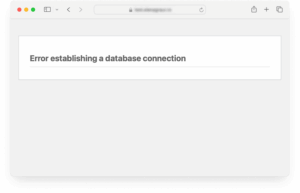
This problem is known as a WordPress plugin conflict. It can cause website errors, broken layouts, slow loading, or even prevent you from accessing your WordPress dashboard.
In this guide, you will learn how to find the problem plugin, troubleshoot conflicts safely, and prevent the same issue from happening again.
What Is a WordPress Plugin Conflict?
A plugin conflict occurs when a plugin interferes with another plugin, your active theme, or WordPress itself. Plugins may use overlapping functions, incompatible scripts, or different versions of the same library.
Common signs of a plugin conflict include:
- Your website displays a critical error.
- The WordPress dashboard stops working correctly.
- A page builder or contact form suddenly breaks.
- Website pages show unexpected layouts or missing elements.
- The website becomes unusually slow.
- An error appears after installing or updating a plugin.
Not every website problem is caused by a plugin conflict, so testing is important before making permanent changes.
1. Identify When the Problem Started
The easiest way to begin troubleshooting is to identify what changed shortly before the issue appeared.


7
Ask yourself these questions:
- Did you install a new plugin recently?
- Did an existing plugin update automatically?
- Did you update WordPress or your theme?
- Did the website start breaking after changing a setting?
- Did your hosting provider recently change the PHP version?
How to investigate:
- Open your WordPress dashboard if it is accessible.
- Review recently installed or updated plugins.
- Check whether the issue affects one page or the entire website.
- Note the exact error message and when it first appeared.
- If possible, check your hosting error logs for clues.
If the issue began immediately after a particular plugin update, start by investigating that plugin.
2. Deactivate All Plugins Temporarily
One of the most effective ways to identify a plugin conflict is to deactivate plugins temporarily and test your website.

How to do it:
- Log in to your WordPress dashboard.
- Go to Plugins → Installed Plugins.
- Select the plugins you want to deactivate, or select all plugins if necessary.
- Choose Deactivate from the bulk actions menu.
- Visit your website and check whether the problem has disappeared.
If the issue disappears after deactivating the plugins, one or more plugins may be responsible.
Important: Deactivating plugins can temporarily affect contact forms, security features, online stores, caching, and other website functions. Avoid doing this on a busy live website if possible. Use a staging site or maintenance window, and do not delete any plugins during testing.
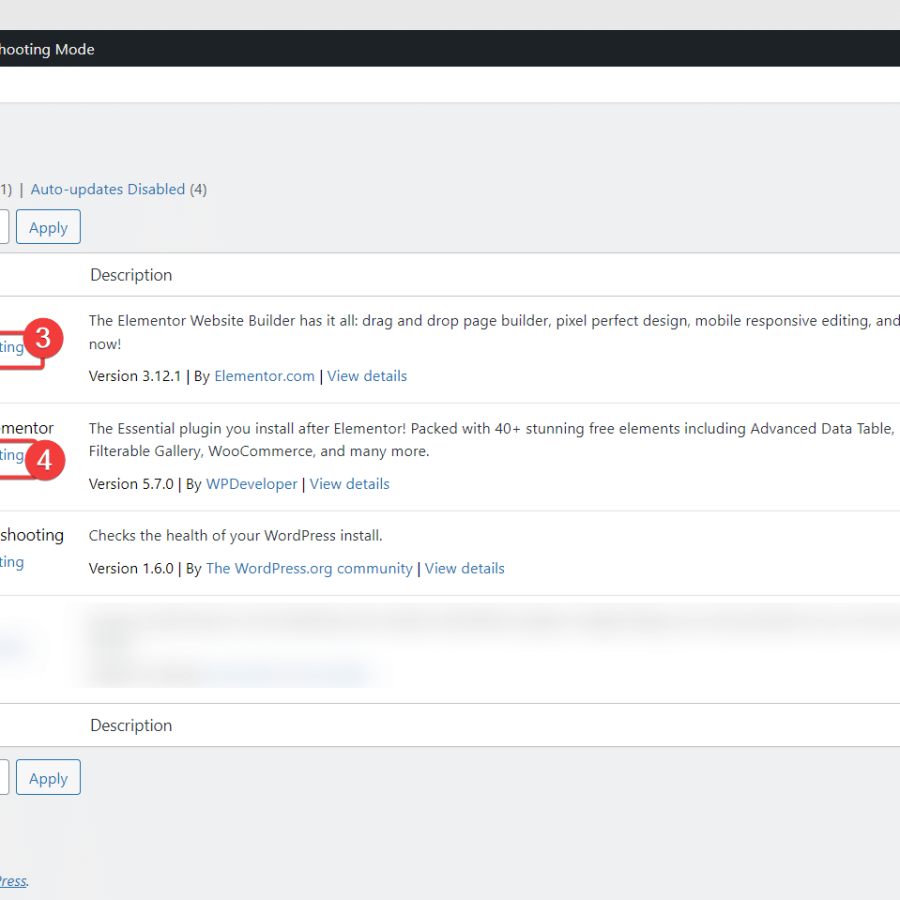
3. Reactivate Plugins One by One
After confirming that deactivating the plugins resolves the issue, reactivate them individually to find the plugin causing the problem.

Follow these steps:
- Activate one plugin.
- Visit the affected page or test the feature that was broken.
- Check whether the problem returns.
- Repeat the process with the remaining plugins.
- Note which plugin activation causes the issue to appear again.
For example, if your website works normally until you activate a particular page builder add-on, that plugin may be involved in the conflict.
Keep in mind that some conflicts only occur when two specific plugins are active together. If no single plugin reproduces the issue, test likely combinations.
4. Check Plugin Compatibility and Updates


6
Outdated or incompatible plugins can cause problems after a WordPress, theme, or PHP update.
To check compatibility:
- Open the plugin’s details page in the WordPress plugin directory.
- Review its latest update date and compatibility information.
- Check the developer’s documentation for known issues.
- Review support discussions for similar errors.
- Install available updates only after backing up your website.
If the problem started after an update, check whether the developer has documented the issue. If a rollback is necessary, use a trusted source and a tested backup rather than downloading plugin files from unknown websites.
5. Test Whether Your Theme Is Causing the Conflict
Sometimes, the problem is not a plugin by itself. A plugin may conflict with your active theme.

To test this possibility:
- Back up your website.
- If possible, use a staging website for testing.
- Temporarily activate a default WordPress theme, such as a current Twenty Twenty-series theme.
- Test the page or feature that was failing.
- If the problem disappears, investigate the theme and its customizations.
If the issue continues with a default theme, the cause may be a plugin, WordPress core, server configuration, or another component.
Restore your original theme after testing if it was not responsible.
6. Use WordPress Recovery Mode or Check Error Logs
If a plugin conflict causes a critical error, WordPress may send an email to the site administrator with a recovery-mode link.


6
Recovery mode may allow you to access the dashboard and deactivate the problematic plugin.
If you cannot access the dashboard, your hosting provider’s File Manager or FTP access may help you rename the suspected plugin’s folder temporarily. This disables the plugin without deleting its files.
You can also ask your hosting provider to inspect PHP error logs. These logs may identify the file or function associated with the failure.
Safety tip: Avoid displaying technical errors publicly on a live website. If you enable WordPress debugging, use logging with error display disabled, protect the log files, and turn debugging off after troubleshooting.
7. Clear Your Website Cache


7
Sometimes, a website continues to show an old or broken version of a page even after a plugin issue has been fixed.
To rule out caching problems:
- Clear your WordPress caching plugin’s cache.
- Purge your hosting or server cache, if enabled.
- Clear your CDN cache, if you use a content delivery network.
- Open the website in a private browser window.
- Test the affected page again.
Caching is not always the cause of a plugin conflict, but clearing it can help you confirm whether the changes are visible.
8. What to Do When You Find the Problem Plugin
Once you identify the plugin associated with the conflict, choose the solution that best fits the situation.
- Update it: Install a compatible release if the developer has fixed the issue.
- Change its settings: Disable the feature responsible for the conflict, if possible.
- Contact the developer: Share the error details and steps to reproduce the issue.
- Find an alternative: Consider another trusted plugin with similar functionality.
- Restore a backup: If the issue began after a change and cannot be resolved safely, restore a known-good backup.
Do not leave essential security, backup, or e-commerce functions disabled longer than necessary. Confirm that your website works properly after applying a fix.
How to Prevent WordPress Plugin Conflicts
Following a few good practices can reduce the likelihood of future plugin problems.
- Keep WordPress, themes, and plugins updated.
- Back up your website before major updates.
- Test updates on a staging website whenever possible.
- Install plugins from trusted sources.
- Remove plugins that are no longer needed.
- Avoid installing multiple plugins that perform the same task unless necessary.
- Check compatibility before adding a new plugin.
- Monitor error logs and website performance.
- Keep a record of important changes so you can identify what caused a problem.
Conclusion
A WordPress plugin conflict can cause broken pages, missing features, slow performance, or critical errors. The best way to identify the problem is to review recent changes, deactivate plugins temporarily, reactivate them one at a time, and test the theme and server configuration if necessary.
Always back up your website before troubleshooting, and use a staging site whenever possible. Once you identify the cause, updating the plugin, adjusting its settings, or replacing it with a compatible alternative can help restore your website.