Aapke pichle article ki tarah is mein bhi complete English article, article ke andar relevant images, image captions, step-by-step instructions, FAQs aur SEO settings shamil hain. Images ke liye JPG format ko preference di gayi hai; neeche article mein aapko images ke saath unka placement bhi milega.
What Is WordPress Debug Mode?
WordPress Debug Mode is a built-in feature that helps website owners and developers identify errors in WordPress core, themes, and plugins. When enabled, it can report PHP errors, warnings, notices, and deprecated functions that help diagnose website problems.
WordPress Developer Resources
+1
Debug Mode is particularly useful when:
- Your website displays a critical error.
- A plugin stops working after an update.
- Your theme produces unexpected behavior.
- You see a blank page or broken functionality.
- You need to investigate PHP errors.


6
Image caption: WordPress Debug Mode helps developers investigate PHP errors and diagnose website issues.
1. Back Up Your WordPress Website Before Enabling Debug Mode
Before changing any WordPress configuration file, create a complete backup of your website. This should include your website files and database.
The wp-config.php file contains important WordPress configuration settings. An incorrect edit can cause your website to stop loading.
How to Create a Backup
- Open your hosting control panel.
- Back up your WordPress files using File Manager or SFTP.
- Export your database using your hosting database tool.
- Save the backup somewhere safe.
- Confirm that you can restore the backup if necessary.
If your hosting provider offers a staging environment, use it to investigate problems without affecting your live website.
2. Locate the wp-config.php File


The wp-config.php file is normally located in your WordPress installation’s root directory. It contains configuration settings that WordPress reads when loading your website.
How to Find It
- Log in to your hosting control panel.
- Open File Manager.
- Navigate to your WordPress installation directory, often named
public_html. - Locate
wp-config.php. - Make a backup of the file before editing it.
If your WordPress installation is in a subdirectory, the file may be located there instead.
You can also access the file through SFTP if your hosting provider supports it.
3. Enable WordPress Debug Mode Safely
The recommended approach is to enable debugging while keeping error messages hidden from public visitors and saving them to a log file. WordPress provides separate settings for these functions.
WordPress Developer Resources
+1
Step 1: Open wp-config.php
Open the file using your hosting File Manager or a text editor connected through SFTP.
Step 2: Find the Existing Debug Setting
Look for this line:
define( 'WP_DEBUG', false );
If it exists, update the existing setting rather than adding a duplicate definition.
Step 3: Configure Debug Mode
Use these settings, replacing existing definitions where necessary:
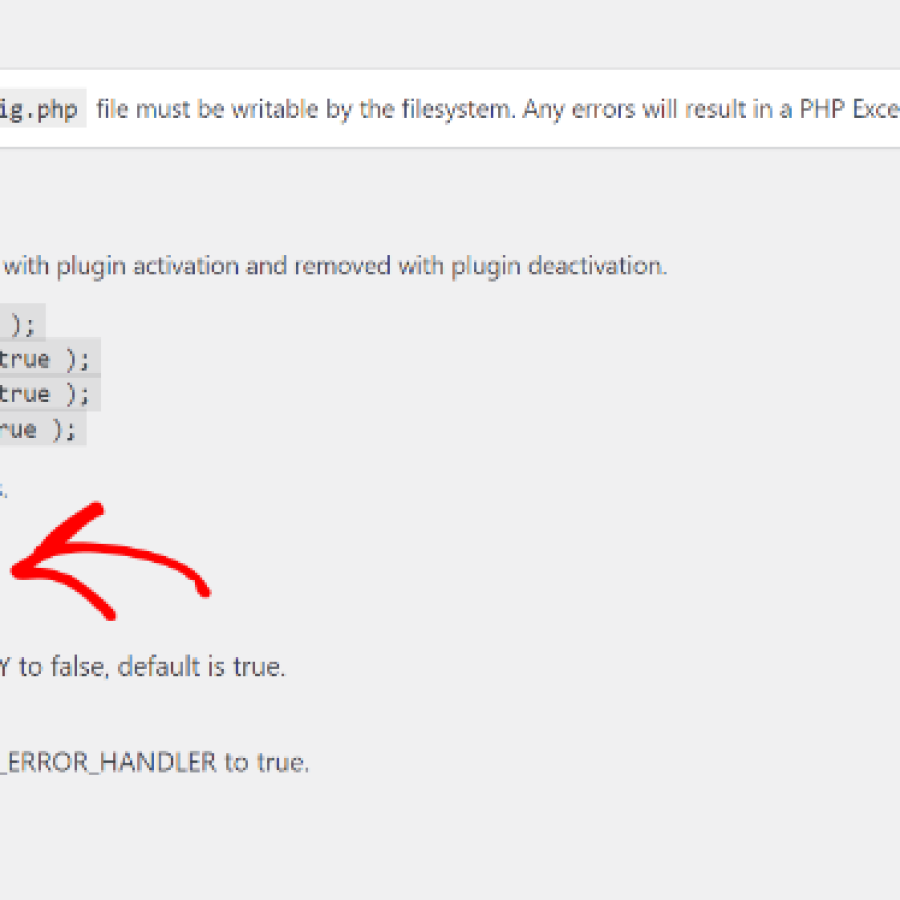
define( 'WP_DEBUG', true );
define( 'WP_DEBUG_LOG', true );
define( 'WP_DEBUG_DISPLAY', false );
@ini_set( 'display_errors', 0 );
Place the configuration above the line that says:
/* That's all, stop editing! Happy publishing. */
These settings enable WordPress debugging, log errors to a file, and request that errors remain hidden from the page output.
WordPress Developer Resources
+1
Important: If your wp-config.php already defines these constants, edit the existing definitions. Do not add duplicate define() statements.
4. Enable Debug Logging to Record Errors


7
Enabling Debug Mode helps WordPress report issues, while WP_DEBUG_LOG saves relevant messages to a log file for later investigation.
By default, the log is commonly stored at:
wp-content/debug.log
How to Generate a Debug Log
- Save your updated configuration file.
- Visit the page where the problem occurs.
- Repeat the action that triggers the error.
- Open the
wp-contentdirectory. - Check whether
debug.loghas been created or updated.
If the file does not appear, check your hosting provider’s PHP error logs and confirm that the relevant directory is writable by the server.
Keep the log protected because it may contain internal file paths and other sensitive technical information.
5. Understand the Difference Between WP_DEBUG, WP_DEBUG_LOG, and WP_DEBUG_DISPLAY
WordPress provides different debugging constants for different purposes.
| Setting | Purpose |
|---|---|
WP_DEBUG | Enables WordPress debugging. |
WP_DEBUG_LOG | Saves debug messages to a log file. |
WP_DEBUG_DISPLAY | Controls whether debug messages appear in page output. |
These settings work together, but they are not interchangeable. For example, enabling logging does not mean you need to display errors to visitors.
WordPress Developer Resources
+1
For a live website, keeping error display disabled while logging errors is generally the safer approach.
6. How to Read WordPress Debug Errors

Once debugging is enabled, the log may contain several types of messages.
PHP Fatal Errors
Fatal errors can stop a PHP request from completing successfully.
They may be caused by incompatible plugins, missing dependencies, or programming errors.
PHP Warnings
Warnings indicate potential problems, such as accessing an undefined array key. They do not always stop the website from working.
PHP Notices
Notices can highlight unexpected coding practices or missing values. The wording and severity of messages can differ between PHP versions.
Deprecated Function Messages
These messages indicate that a function or feature is outdated and may be removed in a future release.
How to Investigate an Error
Look at the timestamp, error type, file path, and line number. If the path points to a plugin or theme, investigate that component first.
However, the file mentioned in an error is not always the root cause. Check the surrounding context and test potential fixes before making changes.
7. Troubleshoot Common WordPress Problems Using Debug Mode


6
Debug Mode can help investigate several common WordPress issues.
White Screen of Death
If a page displays a blank screen, check the log for fatal PHP errors recorded when you loaded that page.
Plugin Compatibility Problems
If an error starts after a plugin update, inspect the log and test the suspected plugin on a staging website.
Theme Errors
If the log points to your active theme, check for updates and consult the theme developer’s documentation.
PHP Compatibility Issues
Older themes and plugins may use functionality that behaves differently in newer PHP versions. Check compatibility before changing your hosting PHP version.
Always test fixes on staging when possible, and avoid editing WordPress core files directly.
8. Keep Debug Errors Hidden From Website Visitors
One of the most important parts of safe debugging is preventing technical errors from appearing publicly.
Displaying errors can expose internal server paths and other details that should not be visible to ordinary visitors.


9
Recommended Settings for a Live Website
- Keep
WP_DEBUG_DISPLAYset tofalse. - Keep PHP error display disabled.
- Use logging to investigate problems.
- Restrict access to debug log files.
- Avoid sharing raw logs without checking for sensitive information.
- Disable temporary debugging settings when troubleshooting is complete.
Remember that hosting-level PHP configuration can also affect whether errors are displayed. If errors continue appearing publicly, check your hosting settings or contact your hosting provider.
9. How to Disable WordPress Debug Mode After Troubleshooting
Once you have identified and resolved the problem, turn debugging off if you no longer need it.
Step 1: Reopen wp-config.php
Use your hosting File Manager or SFTP to open the configuration file.
Step 2: Update the Debug Setting
Change the existing setting to:
define( 'WP_DEBUG', false );Make sure you do not leave duplicate definitions in the file.
Step 3: Review the Other Debugging Settings
Check any existing WP_DEBUG_LOG, WP_DEBUG_DISPLAY, and PHP error-display settings. Restore your intended production configuration.
Step 4: Review the Log File
Download the log if you need to retain it for future reference. Then archive or remove it when appropriate, following your hosting provider’s guidance.
Debug logs should not be left publicly accessible. Disabling WordPress Debug Mode does not automatically remove existing log files.

WordPress.com Developer Resources
+1
10. Best Practices for Safe WordPress Debugging
Follow these recommendations to troubleshoot WordPress more safely:
- Back up your website before editing configuration files.
- Use a staging environment whenever possible.
- Keep error messages hidden from public visitors.
- Store logs securely.
- Check file paths before identifying the cause of an error.
- Avoid changing multiple settings at the same time.
- Update themes and plugins after checking compatibility.
- Disable temporary debugging settings when finished.
- Ask your hosting provider for help if server-level errors persist.
A careful approach can help you resolve errors without introducing additional problems.
Frequently Asked Questions
Is WordPress Debug Mode safe to enable?
It can be useful when configured carefully. On live websites, keep error display disabled, protect log files, and disable temporary debugging settings when they are no longer needed.
Where do WordPress debug logs appear?
By default, logs are commonly saved to wp-content/debug.log when debugging and logging are enabled. Your hosting environment may use a different location.
Will enabling Debug Mode fix my website automatically?
No. Debug Mode helps identify errors and provides information for troubleshooting. You must investigate the messages and apply the appropriate fix.
Can I enable WordPress Debug Mode without coding?
Some hosting providers and debugging plugins offer alternative tools, but access and features vary. Editing wp-config.php is the standard method for configuring WordPress’s built-in debugging constants.
Should I leave WP_DEBUG enabled permanently?
For a typical production website, it is best to disable temporary debugging after troubleshooting. If you need ongoing logging, configure it securely and monitor log size and access.
Why is my debug.log file empty?
The problem may not have generated a PHP error, the logging settings may be incorrect, or the server may be using a different log location. Check your hosting provider’s error logs as well.
Conclusion
Enabling WordPress Debug Mode safely helps you investigate PHP errors, plugin conflicts, theme problems, and other website issues.
The key is to configure debugging correctly, keep error messages hidden from visitors, and use log files to identify the underlying cause of problems.
Always back up your website before editing wp-config.php, test changes carefully, and disable temporary debugging settings after troubleshooting is complete.
Final tip: Debug Mode is a diagnostic tool, not an automatic repair feature. Read the error messages carefully and make changes only after identifying the likely cause.