

4
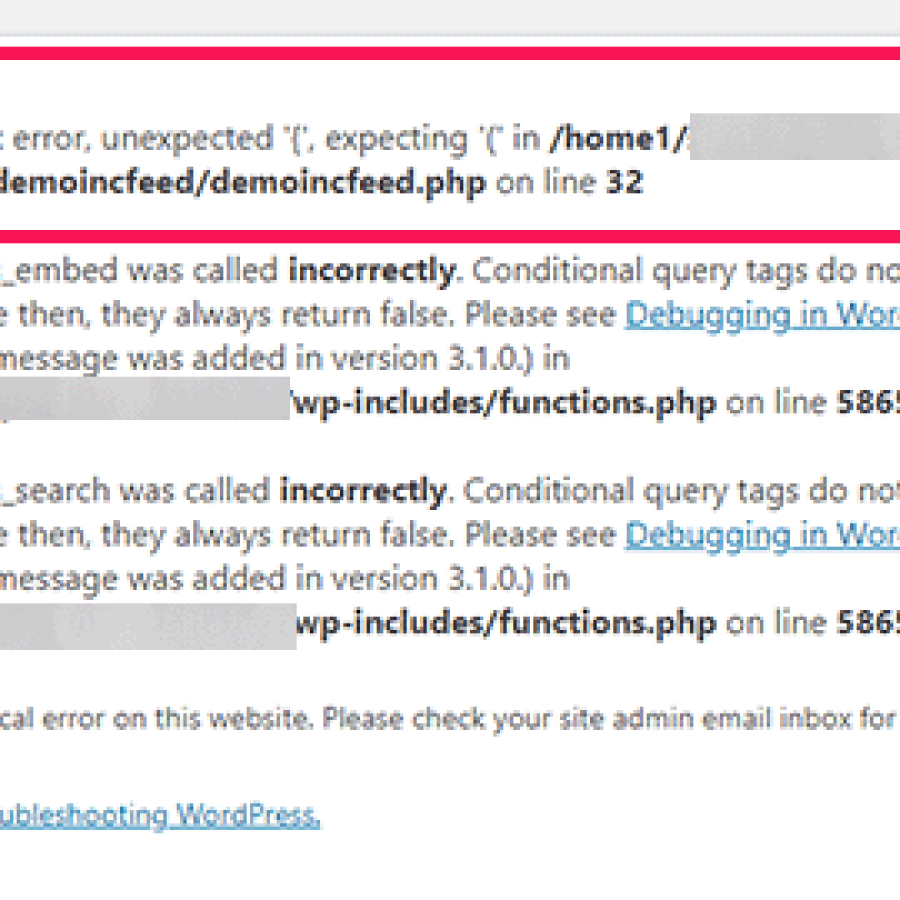
Have you ever opened your WordPress website and suddenly seen the message, “There has been a critical error on this website”? This can be frustrating, especially when your website was working perfectly before.
A WordPress critical error usually means that something has gone wrong with your website’s PHP code, plugin, theme, or server configuration. The good news is that most critical errors can be diagnosed and fixed with a few careful steps.
In this guide, you will learn the common causes of WordPress critical errors and how to troubleshoot them safely.
What Is a WordPress Critical Error?
A WordPress critical error occurs when the website encounters a serious problem that prevents a page or the entire website from loading correctly.


4
WordPress may display a message such as:
“There has been a critical error on this website.”
Sometimes, WordPress also sends an automated email to the site administrator with details about the problem. This email may include a recovery link that allows you to access the dashboard in recovery mode.
The error does not necessarily mean your website has been hacked or that your data has been lost. It simply means that a serious technical issue needs attention.
1. A Plugin Is Causing the Error
One of the most common reasons for a WordPress critical error is a faulty or incompatible plugin.

A plugin may cause problems when:
- It conflicts with another installed plugin.
- It is incompatible with your WordPress version.
- An update introduces a bug.
- Its code contains a PHP error.
- It requires a PHP version that your server does not support.
How to fix it:
If you can access the WordPress dashboard, open Plugins → Installed Plugins and deactivate the plugin you recently installed or updated.
If you cannot access the dashboard, use your hosting File Manager or FTP to open the wp-content folder. You can temporarily rename the suspected plugin’s folder to disable it. Rename it back after testing, and avoid changing multiple plugins at once so you can identify the cause.
2. Your WordPress Theme Has a Problem
A theme can also trigger a critical error, especially after an update or when its code is incompatible with your current WordPress or PHP version.

This can happen when:
- The theme contains faulty PHP code.
- A theme update was interrupted.
- The theme relies on an incompatible plugin.
- A customized theme file contains a coding mistake.
How to fix it:
If you can access the dashboard, go to Appearance → Themes and temporarily activate a default WordPress theme, if one is available.
If the dashboard is inaccessible, make a backup first and ask your hosting provider for help switching to a default theme. Avoid deleting your active theme because it may contain important customizations.
3. Your PHP Version Is Incompatible
WordPress runs on PHP, the server-side programming language used by WordPress and many of its plugins and themes.


6
If your hosting server uses an incompatible PHP version, an older plugin or theme may stop working and trigger a critical error.
How to fix it:
- Log in to your hosting control panel.
- Find the PHP settings or PHP version manager.
- Check the PHP version currently assigned to your website.
- Review the requirements for your WordPress installation, theme, and plugins.
- Test a compatible PHP version on a staging site before changing the live website.
Do not automatically switch to an older PHP version. Choose a version supported by your WordPress setup and hosting provider.
4. A WordPress Core File Is Missing or Damaged
WordPress may show a critical error if an important core file is missing, corrupted, or modified incorrectly.
This can happen after an interrupted update, a failed file transfer, or an accidental change to website files.
How to fix it:
- Create a full backup of your website.
- Download a clean copy of the same WordPress version from the official WordPress website.
- Replace damaged core files carefully, without overwriting your
wp-contentfolder orwp-config.php. - Alternatively, use your hosting provider’s WordPress repair tools or ask its support team to check the files.
Never delete important WordPress files without understanding their purpose.
5. Your Website Has Reached Its PHP Memory Limit

WordPress plugins, themes, and complex website functions require server memory. If a process exceeds the available PHP memory limit, it may fail and contribute to a critical error.
This is more likely to happen on websites running resource-intensive plugins, page builders, or large online stores.
How to fix it:
- Check your hosting account’s resource usage.
- Review your PHP error logs for memory-related messages.
- Disable unnecessary plugins and investigate any plugin consuming excessive resources.
- Contact your hosting provider if the available PHP memory limit needs to be adjusted.
Increasing the memory limit may help, but it will not fix a plugin or theme that is consuming resources incorrectly.
6. A Failed WordPress or Plugin Update

Sometimes, a WordPress core, theme, or plugin update fails because of a server timeout, interrupted connection, insufficient disk space, or a compatibility issue.
The website may begin showing a critical error immediately after the update.
How to fix it:
- Check which component was updated immediately before the error appeared.
- Review your hosting error logs.
- Check whether the update completed successfully.
- Restore a known-good backup if necessary.
- Test updates on a staging website before applying them to your live site in the future.
Avoid repeatedly updating or reinstalling components before identifying the underlying issue.
7. How to Find the Exact Cause of a WordPress Critical Error
If the usual fixes do not work, WordPress debugging can help you identify the problem.

WordPress supports debug settings that can record errors in a log file. With appropriate configuration, you can collect diagnostic information without displaying technical errors to visitors.
The following settings are commonly used for temporary troubleshooting:
WP_DEBUGenables WordPress debugging.WP_DEBUG_LOGrecords errors in a log file.WP_DEBUG_DISPLAYcontrols whether errors are displayed on screen.
For a live website, keep error display disabled. Back up your files before editing wp-config.php, and place debug settings above the line that says “That’s all, stop editing! Happy publishing.”
After enabling logging, reproduce the issue and inspect the log file, commonly located at wp-content/debug.log. It may reveal the plugin, theme, or file associated with the failure.
Important: Debug logs can contain sensitive information. Restrict access to them, do not publish them online, and disable debugging and remove or secure the logs when troubleshooting is complete.
8. Contact Your Hosting Provider if the Error Continues

If you have tried the basic troubleshooting steps and your website still shows a critical error, contact your hosting provider.
Ask the support team to check:
- PHP error logs and server logs.
- PHP version compatibility.
- Available memory and server resources.
- File permissions and missing files.
- Recent server changes or failed updates.
Share the exact error message and the time the problem started. This can help the support team identify the issue faster.
How to Prevent WordPress Critical Errors in the Future
Preventing critical errors is easier than recovering from a serious website failure. Follow these best practices to reduce the risk:
- Keep regular backups: Back up your website files and database.
- Update carefully: Test major updates on a staging site first.
- Use trusted plugins: Install plugins from reputable sources and remove those you no longer need.
- Maintain PHP compatibility: Use a PHP version supported by your WordPress installation and extensions.
- Monitor website health: Check error logs and server resource usage regularly.
- Avoid editing live files without a backup: Even a small coding mistake can make your website inaccessible.
- Disable debugging after troubleshooting: Do not leave diagnostic logs exposed on a production website.
Conclusion
A WordPress critical error can be caused by a faulty plugin, a theme conflict, PHP incompatibility, damaged core files, insufficient memory, or a failed update.
The best approach is to back up your website, identify what changed before the error appeared, and troubleshoot one possible cause at a time. If the issue remains unresolved, review the error logs or contact your hosting provider.
With regular backups, careful updates, and proper monitoring, you can reduce the chances of encountering the same problem aga